為 iOS 設定通用連結
深度連結允許應用使用者使用 URI 啟動應用。此 URI 包含方案、主機和路徑,並開啟應用到特定螢幕。
通用連結是一種專用於 iOS 裝置的深度連結,它只使用 http 或 https 協議。
要設定通用連結,您需要擁有一個網路域。作為臨時解決方案,可以考慮使用 Firebase Hosting 或 GitHub Pages。
設定好深度連結後,您可以驗證它們。要了解更多資訊,請參閱 驗證深度連結。
建立或修改 Flutter 應用
#編寫一個可以處理傳入 URL 的 Flutter 應用。
此示例使用 go_router 包來處理路由。Flutter 團隊維護 go_router 包。它提供了一個簡單的 API 來處理複雜的路由場景。
要建立一個新應用,請輸入
flutter create <app-name>。flutter create deeplink_cookbook要將
go_router包作為依賴項包含在內,請執行flutter pub addflutter pub add go_router要處理路由,請在
main.dart檔案中建立一個GoRouter物件main.dartdartimport 'package:flutter/material.dart'; import 'package:go_router/go_router.dart'; void main() => runApp(MaterialApp.router(routerConfig: router)); /// This handles '/' and '/details'. final router = GoRouter( routes: [ GoRoute( path: '/', builder: (_, _) => Scaffold( appBar: AppBar(title: const Text('Home Screen')), ), routes: [ GoRoute( path: 'details', builder: (_, _) => Scaffold( appBar: AppBar(title: const Text('Details Screen')), ), ), ], ), ], );
調整 iOS 構建設定
#啟動 Xcode。
開啟 Flutter 專案的
ios資料夾中的ios/Runner.xcworkspace檔案。
新增關聯域
#如有必要,啟動 Xcode。
點選頂層 Runner。
在編輯器中,點選 Runner 目標。
點選 Signing & Capabilities。
要新增新域,請點選 Signing & Capabilities 下方的 + Capability。
點選 Associated Domains。
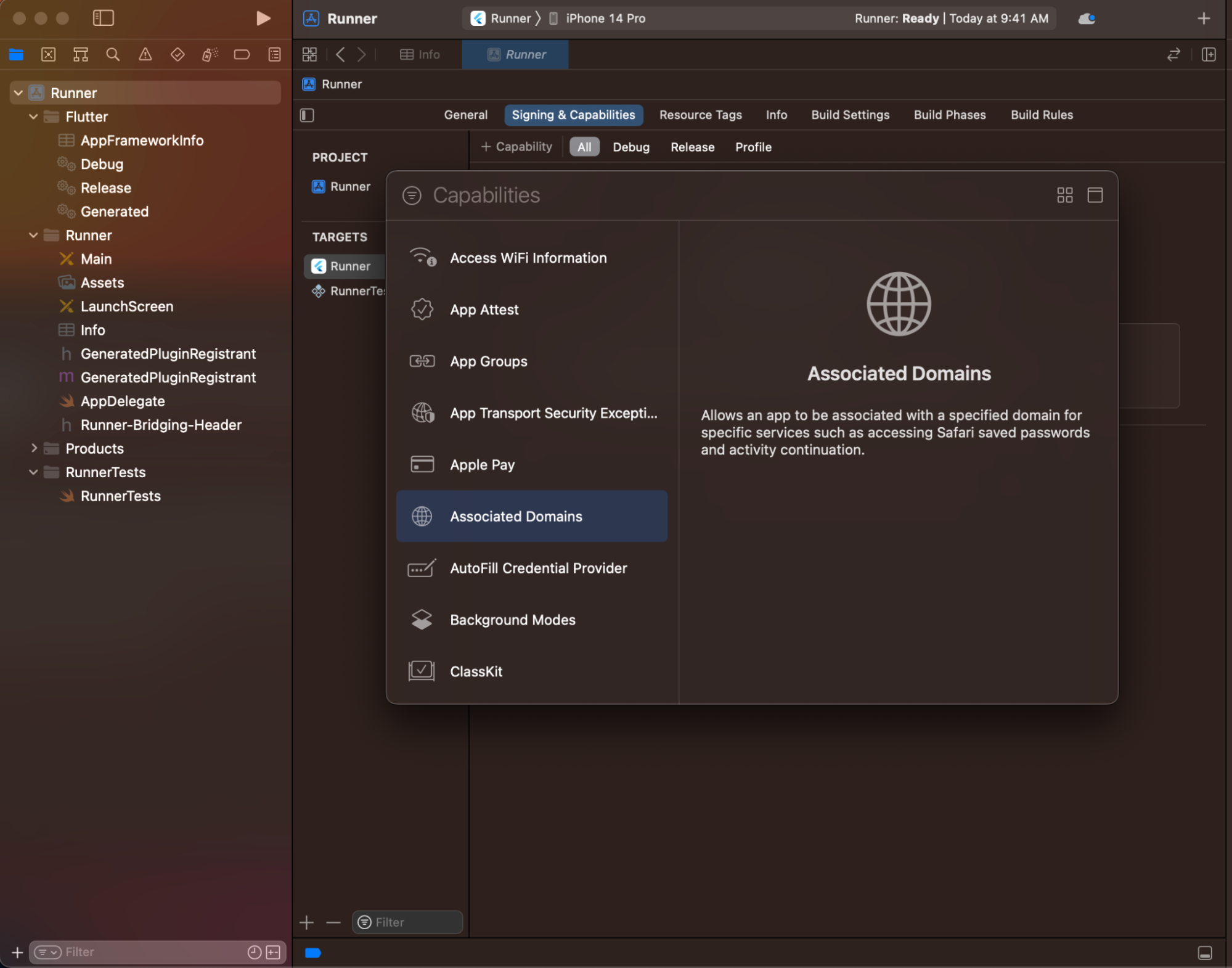
在 Associated Domains 部分,點選 +。
輸入
applinks:<web domain="">。將<web domain="">替換為您自己的域名。
在您喜歡的編輯器中開啟
ios/Runner/Runner.entitlementsXML 檔案。在
<dict>標籤內新增一個關聯域。xml<!--?xml version="1.0" encoding="UTF-8"?--> <plist version="1.0"> <dict> <key>com.apple.developer.associated-domains</key> <array> <string>applinks:example.com</string> </array> </dict> </plist>儲存
ios/Runner/Runner.entitlements檔案。
要檢查您建立的關聯域是否可用,請執行以下步驟
如有必要,啟動 Xcode。
點選頂層 Runner。
在編輯器中,點選 Runner 目標。
點選 Signing & Capabilities。域應出現在 Associated Domains 部分。
您已完成深度連結的應用配置。
將您的應用與您的網路域關聯
#您需要在網路域中託管一個 apple-app-site-association 檔案。此檔案告訴移動瀏覽器要開啟哪個 iOS 應用程式而不是瀏覽器。要建立此檔案,請在上一節中找到您建立的 Flutter 應用程式的 appID。
查詢 appID 的組成部分
#Apple 將 appID 格式化為 <team id>.<bundle id>。
- 在 Xcode 專案中找到 bundle ID。
- 在 開發者賬戶 中找到 team ID。
例如:假設團隊 ID 為 S8QB4VV633,bundle ID 為 com.example.deeplinkCookbook,您將輸入一個 appID 條目 S8QB4VV633.com.example.deeplinkCookbook。
建立並託管 apple-app-site-association JSON 檔案
#此檔案使用 JSON 格式。儲存此檔案時不要包含 .json 副檔名。根據 Apple 的文件,此檔案應類似於以下內容
{
  "applinks": {
    "apps": [],
    "details": [
      {
        "appIDs": [
          "S8QB4VV633.com.example.deeplinkCookbook"
        ],
        "paths": [
          "*"
        ],
        "components": [
          {
            "/": "/*"
          }
        ]
      }
    ]
  },
  "webcredentials": {
    "apps": [
      "S8QB4VV633.com.example.deeplinkCookbook"
    ]
  }
}
將
appIDs陣列中的一個值設定為<team id>.<bundle id>。將
paths陣列設定為["*"]。paths陣列指定允許的通用連結。使用星號*將每個路徑重定向到 Flutter 應用。如果需要,將paths陣列值更改為更適合您應用的設定。將檔案託管在類似於以下結構的 URL 上。
<webdomain>/.well-known/apple-app-site-association驗證您的瀏覽器可以訪問此檔案。
測試通用連結
#使用物理 iOS 裝置或模擬器測試通用連結。
測試前,在 iOS 裝置或模擬器上安裝 Flutter 應用,在所需裝置上使用
flutter run。
完成後,Flutter 應用將顯示在 iOS 裝置或模擬器的主螢幕上。
如果您使用模擬器進行測試,請使用 Xcode CLI
xcrun simctl openurl booted https://<web domain>/details如果您使用物理 iOS 裝置進行測試
- 啟動 備忘錄 應用。
- 在 備忘錄 應用中鍵入 URL。
- 點選生成的連結。
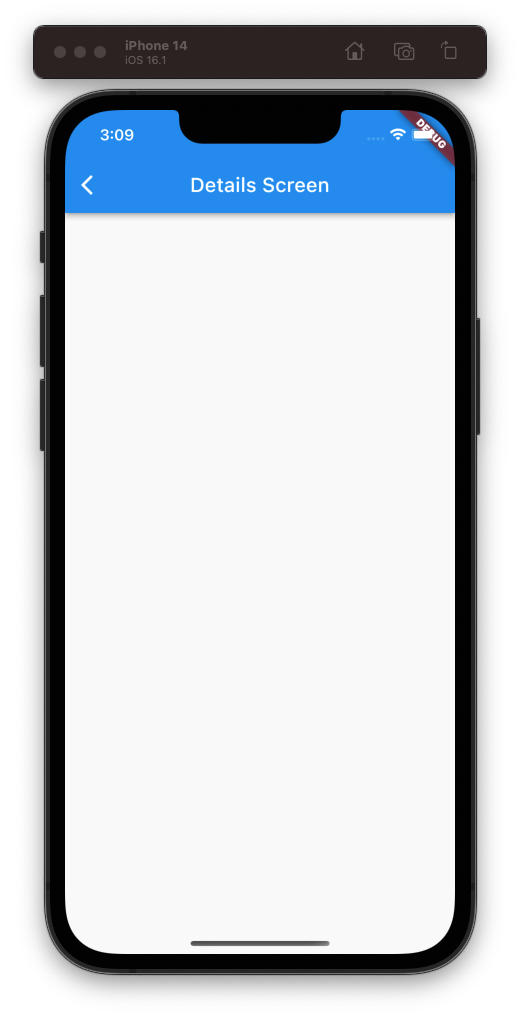
如果成功,Flutter 應用將啟動並顯示其詳細資訊螢幕。
查詢原始碼
#您可以在 GitHub 儲存庫中找到 deeplink_cookbook 食譜的原始碼。