處理使用者輸入
現在你已經知道如何在 Flutter 應用中管理狀態了,那麼你如何讓使用者與你的應用互動並改變其狀態呢?
使用者輸入處理簡介
#作為多平臺 UI 框架,使用者可以透過多種不同方式與 Flutter 應用互動。本節中的資源將向你介紹一些用於在應用中啟用使用者互動的常用元件。
接下來,我們將介紹幾個 Material 元件,它們支援在 Flutter 應用中處理使用者輸入的常見用例。
按鈕
#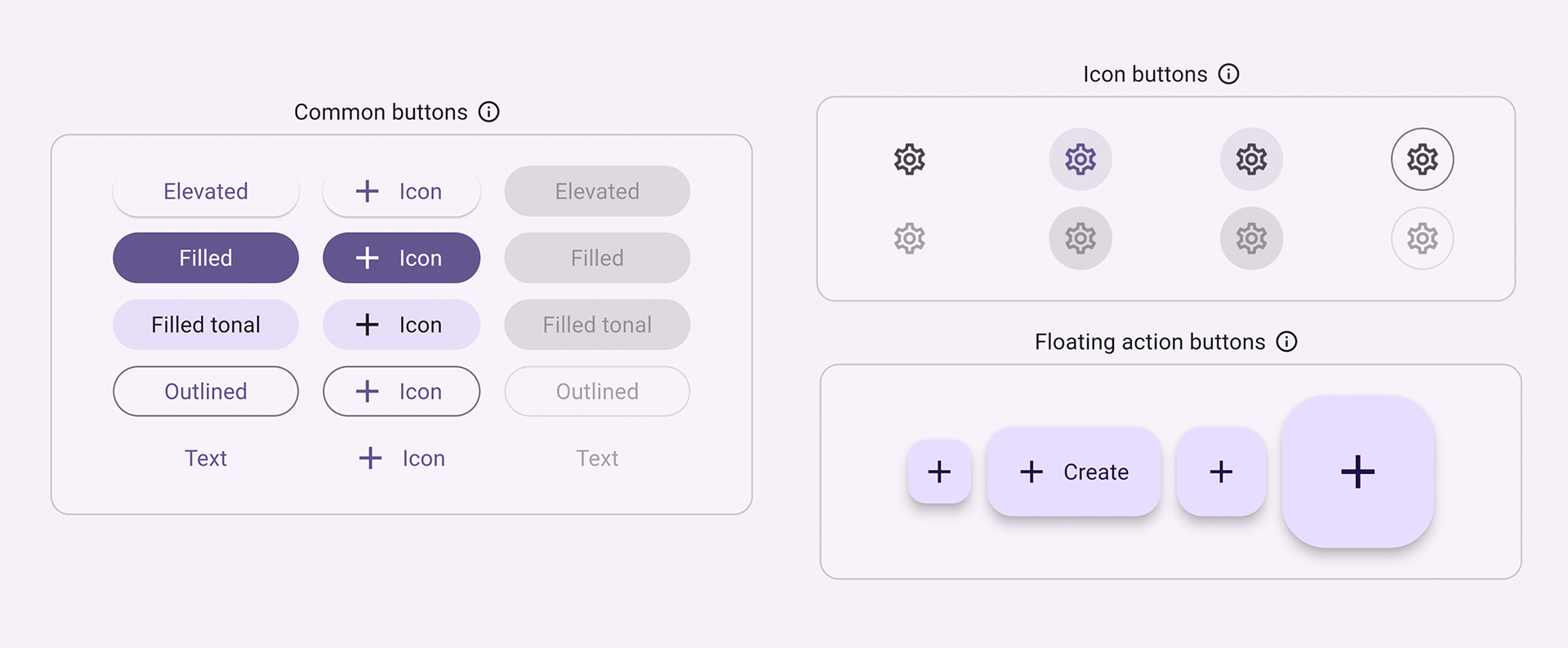
按鈕允許使用者透過點選或輕觸在 UI 中啟動操作。Material 庫提供了各種按鈕型別,它們功能相似,但針對不同的用例進行了不同的樣式化,包括:
ElevatedButton:具有一定深度的按鈕。使用凸起按鈕為大部分扁平佈局增加維度。FilledButton:填充按鈕,應用於完成流程的重要最終操作,例如儲存、立即加入或確認。Tonal Button:介於FilledButton和OutlinedButton之間的按鈕。它們在低優先順序按鈕需要比輪廓按鈕更多強調的上下文中有用,例如下一步。OutlinedButton:帶有文字和可見邊框的按鈕。這些按鈕包含重要的操作,但不是應用中的主要操作。TextButton:可點選文字,無邊框。由於文字按鈕沒有可見邊框,它們必須依靠相對於其他內容的位置來提供上下文。IconButton:帶有圖示的按鈕。FloatingActionButton:懸浮在內容上方以提升主要操作的圖示按鈕。
通常,構建按鈕有三個主要方面:樣式、回撥和其子元件,如下面的 ElevatedButton 示例程式碼所示
按鈕的回撥函式
onPressed決定了點選按鈕時會發生什麼,因此,此函式是你更新應用狀態的地方。如果回撥為null,則按鈕被停用,使用者按下按鈕時不會發生任何事情。按鈕的
child顯示在按鈕的內容區域內,通常是文字或圖示,指示按鈕的目的。最後,按鈕的
style控制其外觀:顏色、邊框等。
int count = 0;

@override
Widget build(BuildContext context) {
  return ElevatedButton(
    style: ElevatedButton.styleFrom(
      textStyle: const TextStyle(fontSize: 20),
    ),
    onPressed: () {
      setState(() {
        count += 1;
      });
    },
    child: const Text('Enabled'),
  );
}
檢查點:完成此教程,學習如何構建一個“收藏”按鈕:為你的 Flutter 應用新增互動性
API 文件:ElevatedButton • FilledButton • OutlinedButton • TextButton • IconButton • FloatingActionButton
文字
#有幾個元件支援文字輸入。
SelectableText

#Flutter 的 Text 元件在螢幕上顯示文字,但不允許使用者突出顯示或複製文字。SelectableText 顯示一串使用者可選的文字。
@override
Widget build(BuildContext context) {
  return const SelectableText('''
Two households, both alike in dignity,
In fair Verona, where we lay our scene,
From ancient grudge break to new mutiny,
Where civil blood makes civil hands unclean.
From forth the fatal loins of these two foes''');
}
RichText
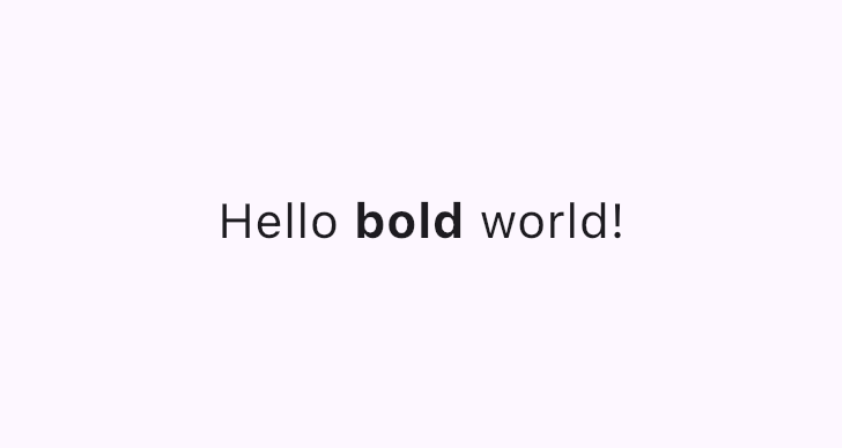
#RichText 允許你在應用中顯示富文字字串。TextSpan 類似於 RichText,允許你以不同的文字樣式顯示部分文字。它不用於處理使用者輸入,但如果你允許使用者編輯和格式化文字,它會很有用。
@override
Widget build(BuildContext context) {
  return RichText(
    text: TextSpan(
      text: 'Hello ',
      style: DefaultTextStyle.of(context).style,
      children: const <TextSpan>[
        TextSpan(text: 'bold', style: TextStyle(fontWeight: FontWeight.bold)),
        TextSpan(text: ' world!'),
      ],
    ),
  );
}
影片:富文字 (本週元件)
演示:富文字編輯器
程式碼:富文字編輯器程式碼
TextField

#TextField 允許使用者使用硬體鍵盤或螢幕鍵盤在文字框中輸入文字。
TextField 具有許多不同的屬性和配置。其中一些亮點包括
InputDecoration決定了文字欄位的外觀,例如顏色和邊框。controller:TextEditingController控制正在編輯的文字。你為什麼需要一個控制器?預設情況下,你的應用使用者可以在文字欄位中輸入,但如果你想以程式設計方式控制TextField並清除其值(例如),你將需要一個TextEditingController。onChanged:當用戶更改文字欄位的值時(例如插入或刪除文字時)觸發此回撥函式。onSubmitted:當用戶指示他們已完成編輯欄位中的文字時觸發此回撥;例如,當文字欄位獲得焦點時點選“Enter”鍵。
該類支援其他可配置屬性,例如 obscureText,它將輸入的每個字母轉換為一個 readOnly 圓圈,以及 readOnly,它阻止使用者更改文字。
final TextEditingController _controller = TextEditingController();

@override
Widget build(BuildContext context) {
  return TextField(
    controller: _controller,
    decoration: const InputDecoration(
      border: OutlineInputBorder(),
      labelText: 'Mascot Name',
    ),
  );
}
檢查點:完成這個 4 部分的烹飪書系列,它將指導你如何建立一個文字欄位,檢索其值,並更新你的應用狀態
Form
#Form 是一個可選容器,用於將多個表單欄位元件(例如 TextField)組合在一起。
每個單獨的表單欄位都應包裝在 FormField 元件中,並以 Form 元件作為共同的祖先。存在方便的元件,可以為你將表單欄位元件預包裝在 FormField 中。例如,TextField 的 Form 元件版本是 TextFormField。
使用 Form 可以訪問 FormState,它允許你儲存、重置和驗證從此 Form 派生的每個 FormField。你還可以提供 GlobalKey 來標識特定的表單,如下面程式碼所示
final GlobalKey<FormState> _formKey = GlobalKey<FormState>();

@override
Widget build(BuildContext context) {
  return Form(
    key: _formKey,
    child: Column(
      crossAxisAlignment: CrossAxisAlignment.start,
      children: <Widget>[
        TextFormField(
          decoration: const InputDecoration(
            hintText: 'Enter your email',
          ),
          validator: (String? value) {
            if (value == null || value.isEmpty) {
              return 'Please enter some text';
            }
            return null;
          },
        ),
        Padding(
          padding: const EdgeInsets.symmetric(vertical: 16.0),
          child: ElevatedButton(
            onPressed: () {
              // Validate returns true if the form is valid, or false otherwise.
              if (_formKey.currentState!.validate()) {
                // Process data.
              }
            },
            child: const Text('Submit'),
          ),
        ),
      ],
    ),
  );
}檢查點:完成此教程以學習如何構建帶驗證的表單。
演示:表單應用
程式碼:表單應用程式碼
API 文件:TextField • RichText • SelectableText • Form
從一組選項中選擇一個值
#提供一種讓使用者從多個選項中選擇的方式。
SegmentedButton
#SegmentedButton 允許使用者從一組最少 2-5 個專案中進行選擇。
資料型別 <T> 可以是內建型別,如 int、String、bool 或列舉。SegmentedButton 具有幾個相關屬性
segments,一個ButtonSegment列表,其中每個表示使用者可以選擇的“段”或選項。在視覺上,每個ButtonSegment可以有一個圖示、文字標籤或兩者兼有。multiSelectionEnabled指示是否允許使用者選擇多個選項。此屬性預設為 false。selected標識當前選定的值。注意:selected的型別為Set<T>,因此如果你只允許使用者選擇一個值,則該值必須作為包含單個元素的Set提供。當用戶選擇任何段時,
onSelectionChanged回撥會觸發。它提供一個選定段的列表,以便你可以更新應用狀態。其他樣式引數允許你修改按鈕的外觀。例如,
style接受一個ButtonStyle,提供了一種配置selectedIcon的方法。
enum Calendar { day, week, month, year }

// StatefulWidget...
Calendar calendarView = Calendar.day;

@override
Widget build(BuildContext context) {
  return SegmentedButton<Calendar>(
    segments: const <ButtonSegment<Calendar>>[
      ButtonSegment<Calendar>(
          value: Calendar.day,
          label: Text('Day'),
          icon: Icon(Icons.calendar_view_day)),
      ButtonSegment<Calendar>(
          value: Calendar.week,
          label: Text('Week'),
          icon: Icon(Icons.calendar_view_week)),
      ButtonSegment<Calendar>(
          value: Calendar.month,
          label: Text('Month'),
          icon: Icon(Icons.calendar_view_month)),
      ButtonSegment<Calendar>(
          value: Calendar.year,
          label: Text('Year'),
          icon: Icon(Icons.calendar_today)),
    ],
    selected: <Calendar>{calendarView},
    onSelectionChanged: (Set<Calendar> newSelection) {
      setState(() {
        Suggested change
        // By default there is only a single segment that can be
        // selected at one time, so its value is always the first
        // By default, only a single segment can be
        // selected at one time, so its value is always the first
        calendarView = newSelection.first;
      });
    },
  );
}
Chip
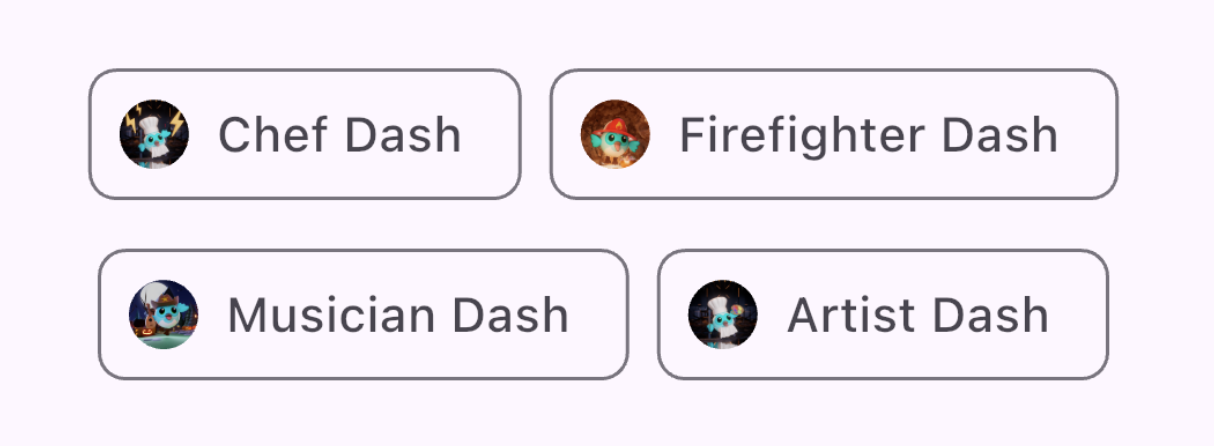
#Chip 是一種緊湊地表示特定上下文的屬性、文字、實體或操作的方式。針對特定用例存在專用 Chip 元件
- InputChip 以緊湊形式表示複雜資訊,例如實體(人、地點或事物)或對話文字。
- ChoiceChip 允許從一組選項中進行單項選擇。選擇晶片包含相關的描述性文字或類別。
- FilterChip 使用標籤或描述性詞語來篩選內容。
- ActionChip 表示與主要內容相關的操作。
每個 Chip 元件都需要一個 label。它可以選擇性地具有一個 avatar(例如圖示或使用者的個人資料圖片)和一個 onDeleted 回撥,該回調顯示一個刪除圖示,當觸發時,刪除該晶片。Chip 元件的外觀也可以透過設定許多可選引數(例如 shape、color 和 iconTheme)來定製。
你通常會使用 Wrap,一個將其子項顯示在多個水平或垂直行的元件,以確保你的晶片換行並且不會在應用邊緣被截斷。
@override
Widget build(BuildContext context) {
  return const SizedBox(
    width: 500,
    child: Wrap(
      alignment: WrapAlignment.center,
      spacing: 8,
      runSpacing: 4,
      children: [
        Chip(
          avatar: CircleAvatar(
              backgroundImage: AssetImage('assets/images/dash_chef.png')),
          label: Text('Chef Dash'),
        ),
        Chip(
          avatar: CircleAvatar(
              backgroundImage:
                  AssetImage('assets/images/dash_firefighter.png')),
          label: Text('Firefighter Dash'),
        ),
        Chip(
          avatar: CircleAvatar(
              backgroundImage: AssetImage('assets/images/dash_musician.png')),
          label: Text('Musician Dash'),
        ),
        Chip(
          avatar: CircleAvatar(
              backgroundImage: AssetImage('assets/images/dash_artist.png')),
          label: Text('Artist Dash'),
        ),
      ],
    ),
  );
}
DropdownMenu

#DropdownMenu 允許使用者從選項選單中選擇一個選項,並將選定的文字放入 TextField 中。它還允許使用者根據文字輸入篩選選單項。
配置引數包括以下內容
dropdownMenuEntries提供一個DropdownMenuEntry列表,描述每個選單項。選單可能包含文字標籤以及前導或尾隨圖示。(這也是唯一必需的引數。)TextEditingController允許以程式設計方式控制TextField。- 當用戶選擇一個選項時,
onSelected回撥會觸發。 initialSelection允許你配置預設值。- 還提供了其他引數用於自定義元件的外觀和行為。
enum ColorLabel {
  blue('Blue', Colors.blue),
  pink('Pink', Colors.pink),
  green('Green', Colors.green),
  orange('Orange', Colors.orange),
  grey('Grey', Colors.grey);

  const ColorLabel(this.label, this.color);
  final String label;
  final Color color;
}

// StatefulWidget...
@override
Widget build(BuildContext context) {
  return DropdownMenu<ColorLabel>(
    initialSelection: ColorLabel.green,
    controller: colorController,
    // requestFocusOnTap is enabled/disabled by platforms when it is null.
    // On mobile platforms, this is false by default. Setting this to true will
    // trigger focus request on the text field and virtual keyboard will appear
    // afterward. On desktop platforms however, this defaults to true.
    requestFocusOnTap: true,
    label: const Text('Color'),
    onSelected: (ColorLabel? color) {
      setState(() {
        selectedColor = color;
      });
    },
    dropdownMenuEntries: ColorLabel.values
      .map<DropdownMenuEntry<ColorLabel>>(
          (ColorLabel color) {
            return DropdownMenuEntry<ColorLabel>(
              value: color,
              label: color.label,
              enabled: color.label != 'Grey',
              style: MenuItemButton.styleFrom(
                foregroundColor: color.color,
              ),
            );
      }).toList(),
  );
}
Slider

#Slider 元件允許使用者透過移動指示器(例如音量條)來調整值。
Slider 元件的配置引數
value表示滑塊的當前值onChanged是當手柄移動時觸發的回撥min和max建立滑塊允許的最小值和最大值divisions建立使用者可以沿軌道移動手柄的離散間隔。
double _currentVolume = 1;

@override
Widget build(BuildContext context) {
  return Slider(
    value: _currentVolume,
    max: 5,
    divisions: 5,
    label: _currentVolume.toString(),
    onChanged: (double value) {
      setState(() {
        _currentVolume = value;
      });
    },
  );
}
API 文件: SegmentedButton • DropdownMenu • Slider • Chip
切換值
#有幾種方式可以讓你的 UI 允許在值之間切換。
Checkbox、Switch 和 Radio
#提供一個選項來開啟和關閉單個值。這些元件的功能邏輯是相同的,因為所有 3 個元件都是基於 ToggleableStateMixin 構建的,儘管每個元件都提供了細微的呈現差異。


Checkbox是一個容器,當為 false 時為空,當為 true 時填充有勾號。Switch有一個手柄,當為 false 時在左側,當為 true 時滑到右側。Radio類似於Checkbox,它是一個容器,當為 false 時為空,但當為 true 時被填充。
Checkbox 和 Switch 的配置包含
- 一個值為
true或false的value - 以及一個
onChanged回撥,當用戶切換元件時觸發
Checkbox
#bool isChecked = false;
@override
Widget build(BuildContext context) {
return Checkbox(
checkColor: Colors.white,
value: isChecked,
onChanged: (bool? value) {
setState(() {
isChecked = value!;
});
},
);
}
Switch
#bool light = true;
@override
Widget build(BuildContext context) {
return Switch(
// This bool value toggles the switch.
value: light,
activeColor: Colors.red,
onChanged: (bool value) {
// This is called when the user toggles the switch.
setState(() {
light = value;
});
},
);
}
Radio
#一組 Radio 按鈕,允許使用者在互斥的值之間進行選擇。當用戶選擇組中的一個單選按鈕時,其他單選按鈕將被取消選擇。
- 特定
Radio按鈕的value代表該按鈕的值, - 一組單選按鈕的選定值由
groupValue引數標識。 Radio還有一個onChanged回撥,當用戶點選它時觸發,就像Switch和Checkbox一樣。
enum Character { musician, chef, firefighter, artist }

class RadioExample extends StatefulWidget {
  const RadioExample({super.key});

  @override
  State<RadioExample> createState() => _RadioExampleState();
}

class _RadioExampleState extends State<RadioExample> {
  Character? _character = Character.musician;

  void setCharacter(Character? value) {
    setState(() {
      _character = value;
    });
  }

  @override
  Widget build(BuildContext context) {
    return Column(
      children: <Widget>[
        ListTile(
          title: const Text('Musician'),
          leading: Radio<Character>(
            value: Character.musician,
            groupValue: _character,
            onChanged: setCharacter,
          ),
        ),
        ListTile(
          title: const Text('Chef'),
          leading: Radio<Character>(
            value: Character.chef,
            groupValue: _character,
            onChanged: setCharacter,
          ),
        ),
        ListTile(
          title: const Text('Firefighter'),
          leading: Radio<Character>(
            value: Character.firefighter,
            groupValue: _character,
            onChanged: setCharacter,
          ),
        ),
        ListTile(
          title: const Text('Artist'),
          leading: Radio<Character>(
            value: Character.artist,
            groupValue: _character,
            onChanged: setCharacter,
          ),
        ),
      ],
    );
  }
}

額外:CheckboxListTile 和 SwitchListTile
#這些便捷元件與複選框和開關元件相同,但支援標籤(作為 ListTile)。
double timeDilation = 1.0;
bool _lights = false;

@override
Widget build(BuildContext context) {
  return Column(
    children: [
      CheckboxListTile(
        title: const Text('Animate Slowly'),
        value: timeDilation != 1.0,
        onChanged: (bool? value) {
          setState(() {
            timeDilation = value! ? 10.0 : 1.0;
          });
        },
        secondary: const Icon(Icons.hourglass_empty),
      ),
      SwitchListTile(
        title: const Text('Lights'),
        value: _lights,
        onChanged: (bool value) {
          setState(() {
            _lights = value;
          });
        },
        secondary: const Icon(Icons.lightbulb_outline),
      ),
    ],
  );
}
API 文件:Checkbox • CheckboxListTile • Switch • SwitchListTile • Radio
選擇日期或時間
#提供了元件以便使用者可以選擇日期和時間。
有一組對話方塊允許使用者選擇日期或時間,你將在以下部分中看到。除了日期型別不同(日期為 DateTime,時間為 TimeOfDay)之外,這些對話方塊的功能相似,你可以透過提供以下內容來配置它們
- 預設的
initialDate或initialTime - 或決定顯示的選取器 UI 的
initialEntryMode。
DatePickerDialog
#此對話方塊允許使用者選擇一個日期或一個日期範圍。透過呼叫 showDatePicker 函式啟用,該函式返回一個 Future<DateTime>,所以不要忘記等待非同步函式呼叫!
DateTime? selectedDate;

@override
Widget build(BuildContext context) {
  var date = selectedDate;

  return Column(children: [
    Text(
      date == null
          ? "You haven't picked a date yet."
          : DateFormat('MM-dd-yyyy').format(date),
    ),
    ElevatedButton.icon(
      icon: const Icon(Icons.calendar_today),
      onPressed: () async {
        var pickedDate = await showDatePicker(
          context: context,
          initialEntryMode: DatePickerEntryMode.calendarOnly,
          initialDate: DateTime.now(),
          firstDate: DateTime(2019),
          lastDate: DateTime(2050),
        );

        setState(() {
          selectedDate = pickedDate;
        });
      },
      label: const Text('Pick a date'),
    )
  ]);
}
TimePickerDialog
#TimePickerDialog 是一個顯示時間選擇器的對話方塊。它可以透過呼叫 showTimePicker() 函式來啟用。showTimePicker 不會返回 Future<DateTime>,而是返回 Future<TimeOfDay>。再次強調,不要忘記等待函式呼叫!
TimeOfDay? selectedTime;

@override
Widget build(BuildContext context) {
  var time = selectedTime;

  return Column(children: [
    Text(
      time == null ? "You haven't picked a time yet." : time.format(context),
    ),
    ElevatedButton.icon(
      icon: const Icon(Icons.calendar_today),
      onPressed: () async {
        var pickedTime = await showTimePicker(
          context: context,
          initialEntryMode: TimePickerEntryMode.dial,
          initialTime: TimeOfDay.now(),
        );

        setState(() {
          selectedTime = pickedTime;
        });
      },
      label: const Text('Pick a time'),
    )
  ]);
}
API 文件: showDatePicker • showTimePicker
滑動與拖動

#Dismissible 是一個允許使用者透過滑動來關閉它的元件。它有許多配置引數,包括
- 一個
child元件 - 一個在使用者滑動時觸發的
onDismissed回撥 - 樣式引數,如
background - 包含
key物件也很重要,這樣它們就可以在元件樹中從同級Dismissible元件中唯一標識。
List<int> items = List<int>.generate(100, (int index) => index);

@override
Widget build(BuildContext context) {
  return ListView.builder(
    itemCount: items.length,
    padding: const EdgeInsets.symmetric(vertical: 16),
    itemBuilder: (BuildContext context, int index) {
      return Dismissible(
        background: Container(
          color: Colors.green,
        ),
        key: ValueKey<int>(items[index]),
        onDismissed: (DismissDirection direction) {
          setState(() {
            items.removeAt(index);
          });
        },
        child: ListTile(
          title: Text(
            'Item ${items[index]}',
          ),
        ),
      );
    },
  );
}
檢查點:完成此教程,學習如何使用可關閉元件實現滑動關閉。
API 文件: Dismissible
尋找更多元件?
#此頁面僅介紹了幾個常用的 Material 元件,你可以使用它們在 Flutter 應用中處理使用者輸入。請檢視Material 元件庫和Material 庫 API 文件以獲取完整的元件列表。
演示:檢視 Flutter 的 Material 3 演示,獲取 Material 庫中可用使用者輸入元件的精選示例。
如果 Material 和 Cupertino 庫沒有你需要的元件,請檢視 pub.dev 尋找 Flutter 和 Dart 社群擁有和維護的軟體包。例如,flutter_slidable 軟體包提供了一個比上一節中描述的 Dismissible 元件更具可定製性的 Slidable 元件。
使用 GestureDetector 構建互動式元件
#你是否已經徹底搜尋了元件庫、pub.dev,並諮詢了你的程式設計朋友,但仍然找不到適合你所尋找的使用者互動的元件?你可以使用 GestureDetector 構建你自己的自定義元件並使其具有互動性。
檢查點:使用此食譜作為起點,建立你自己的自定義按鈕元件,可以處理點選。
參考:檢視點選、拖動和其他手勢,其中解釋瞭如何在 Flutter 中監聽和響應手勢。
附加影片:想知道 Flutter 的
GestureArena如何將原始使用者互動資料轉換為可識別的概念,如點選、拖動和捏合嗎?請觀看此影片:GestureArena (解碼 Flutter)
別忘了無障礙性!
#如果你正在構建自定義元件,請使用 Semantics 元件標註其含義。它為螢幕閱讀器和其他基於語義分析的工具提供描述和元資料。
API 文件:GestureDetector • Semantics
測試
#一旦你完成了在應用中構建使用者互動,別忘了編寫測試以確保一切都按預期工作!
這些教程將指導你編寫模擬應用中使用者互動的測試
檢查點:遵循此點選、拖動和輸入文字烹飪書文章,學習如何使用
WidgetTester模擬和測試應用中的使用者互動。
附加教程:處理滾動烹飪書食譜向你展示瞭如何透過使用元件測試滾動列表來驗證元件列表是否包含預期內容。
下一步:網路
#本頁面是處理使用者輸入的入門。現在你已經知道如何處理應用使用者的輸入,你可以透過新增外部資料使你的應用更有趣。在下一節中,你將學習如何透過網路為你的應用獲取資料,如何將資料轉換為 JSON 以及從 JSON 轉換資料,身份驗證和其他網路功能。
反饋
#隨著本網站此部分的不斷發展,我們歡迎你的反饋!