交錯動畫
交錯動畫是一個簡單的概念:視覺變化以一系列操作發生,而不是一次全部發生。動畫可能是純粹的順序,一個變化接一個地發生;也可能部分或完全重疊;還可能存在間隙,期間沒有變化發生。
本指南將演示如何在 Flutter 中構建交錯動畫。
以下影片演示了 basic_staggered_animation 執行的動畫
在影片中,你將看到一個單個元件的以下動畫,它最初是一個帶有略微圓角的帶邊框的藍色方塊。該方塊按以下順序進行變化
- 淡入
- 變寬
- 向上移動時變高
- 轉換為帶邊框的圓形
- 顏色變為橙色
動畫正向執行後,會反向執行。
交錯動畫的基本結構
#下圖顯示了 basic_staggered_animation 示例中使用的 Interval。你可能會注意到以下特徵
- 不透明度在時間軸的前 10% 發生變化。
- 不透明度變化與寬度變化之間存在微小間隙。
- 在時間軸的最後 25% 沒有任何動畫。
- 增加內邊距使元件看起來向上升起。
- 將邊框半徑增加到 0.5,將帶圓角的方塊轉換為圓形。
- 內邊距和高度變化發生在完全相同的間隔內,但它們不必如此。
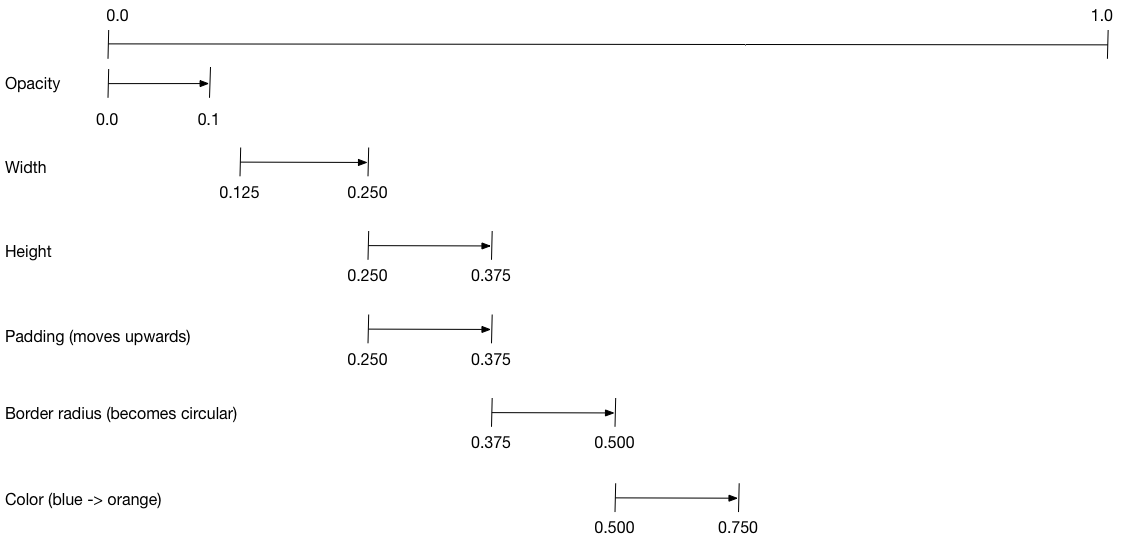
要設定動畫
- 建立一個管理所有
Animations的AnimationController。 - 為每個正在動畫的屬性建立一個
Tween。Tween定義了一個值範圍。Tween的animate方法需要parent控制器,併為該屬性生成一個Animation。
- 在
Animation的curve屬性上指定間隔。
當控制動畫的值改變時,新動畫的值也會改變,從而觸發 UI 更新。
以下程式碼為 width 屬性建立了一個補間。它構建了一個 CurvedAnimation,指定了一個緩和曲線。有關其他可用的預定義動畫曲線,請參閱 Curves。
width = Tween<double>(
  begin: 50.0,
  end: 150.0,
).animate(
  CurvedAnimation(
    parent: controller,
    curve: const Interval(
      0.125,
      0.250,
      curve: Curves.ease,
    ),
  ),
),
begin 和 end 值不一定是雙精度浮點數。以下程式碼使用 BorderRadius.circular() 構建了 borderRadius 屬性(控制方塊圓角程度)的補間。
borderRadius = BorderRadiusTween(
  begin: BorderRadius.circular(4),
  end: BorderRadius.circular(75),
).animate(
  CurvedAnimation(
    parent: controller,
    curve: const Interval(
      0.375,
      0.500,
      curve: Curves.ease,
    ),
  ),
),
完整的交錯動畫
#與所有互動式元件一樣,完整的動畫由一個元件對組成:一個無狀態元件和一個有狀態元件。
無狀態元件指定 Tweens,定義 Animation 物件,並提供一個 build() 函式,負責構建元件樹的動畫部分。
有狀態元件建立控制器,播放動畫,並構建元件樹的非動畫部分。當在螢幕上檢測到點選時,動畫開始。
basic_staggered_animation 的 main.dart 完整程式碼
無狀態元件:StaggerAnimation
#在無狀態元件 StaggerAnimation 中,build() 函式例項化了一個 AnimatedBuilder——一個用於構建動畫的通用元件。AnimatedBuilder 構建一個元件,並使用 Tweens 的當前值對其進行配置。該示例建立了一個名為 _buildAnimation() 的函式(它執行實際的 UI 更新),並將其分配給其 builder 屬性。AnimatedBuilder 偵聽來自動畫控制器的通知,在值改變時將元件樹標記為髒。對於動畫的每個計時,值都會更新,從而導致呼叫 _buildAnimation()。
class StaggerAnimation extends StatelessWidget {
  StaggerAnimation({super.key, required this.controller}) :

    // Each animation defined here transforms its value during the subset
    // of the controller's duration defined by the animation's interval.
    // For example the opacity animation transforms its value during
    // the first 10% of the controller's duration.

    opacity = Tween<double>(
      begin: 0.0,
      end: 1.0,
    ).animate(
      CurvedAnimation(
        parent: controller,
        curve: const Interval(
          0.0,
          0.100,
          curve: Curves.ease,
        ),
      ),
    ),

    // ... Other tween definitions ...
    );

  final AnimationController controller;
  final Animation<double> opacity;
  final Animation<double> width;
  final Animation<double> height;
  final Animation<EdgeInsets> padding;
  final Animation<BorderRadius?> borderRadius;
  final Animation<Color?> color;

  // This function is called each time the controller "ticks" a new frame.
  // When it runs, all of the animation's values will have been
  // updated to reflect the controller's current value.
  Widget _buildAnimation(BuildContext context, Widget? child) {
    return Container(
      padding: padding.value,
      alignment: Alignment.bottomCenter,
      child: Opacity(
        opacity: opacity.value,
        child: Container(
          width: width.value,
          height: height.value,
          decoration: BoxDecoration(
            color: color.value,
            border: Border.all(
              color: Colors.indigo[300]!,
              width: 3,
            ),
            borderRadius: borderRadius.value,
          ),
        ),
      ),
    );
  }

  @override
  Widget build(BuildContext context) {
    return AnimatedBuilder(
      builder: _buildAnimation,
      animation: controller,
    );
  }
}
有狀態元件:StaggerDemo
#有狀態元件 StaggerDemo 建立 AnimationController(所有動畫的管理者),並指定 2000 毫秒的持續時間。它播放動畫,並構建元件樹的非動畫部分。當在螢幕上檢測到點選時,動畫開始。動畫先向前執行,然後向後執行。
class StaggerDemo extends StatefulWidget {
  @override
  State<StaggerDemo> createState() => _StaggerDemoState();
}

class _StaggerDemoState extends State<StaggerDemo>
    with TickerProviderStateMixin {
  late AnimationController _controller;

  @override
  void initState() {
    super.initState();

    _controller = AnimationController(
      duration: const Duration(milliseconds: 2000),
      vsync: this,
    );
  }

  // ...Boilerplate...

  Future<void> _playAnimation() async {
    try {
      await _controller.forward().orCancel;
      await _controller.reverse().orCancel;
    } on TickerCanceled {
      // The animation got canceled, probably because it was disposed of.
    }
  }

  @override
  Widget build(BuildContext context) {
    timeDilation = 10.0; // 1.0 is normal animation speed.
    return Scaffold(
      appBar: AppBar(
        title: const Text('Staggered Animation'),
      ),
      body: GestureDetector(
        behavior: HitTestBehavior.opaque,
        onTap: () {
          _playAnimation();
        },
        child: Center(
          child: Container(
            width: 300,
            height: 300,
            decoration: BoxDecoration(
              color: Colors.black.withValues(alpha: 0.1),
              border: Border.all(
                color: Colors.black.withValues(alpha: 0.5),
              ),
            ),
            child: StaggerAnimation(controller:_controller.view),
          ),
        ),
      ),
    );
  }
}