為您的 Android 應用新增啟動屏
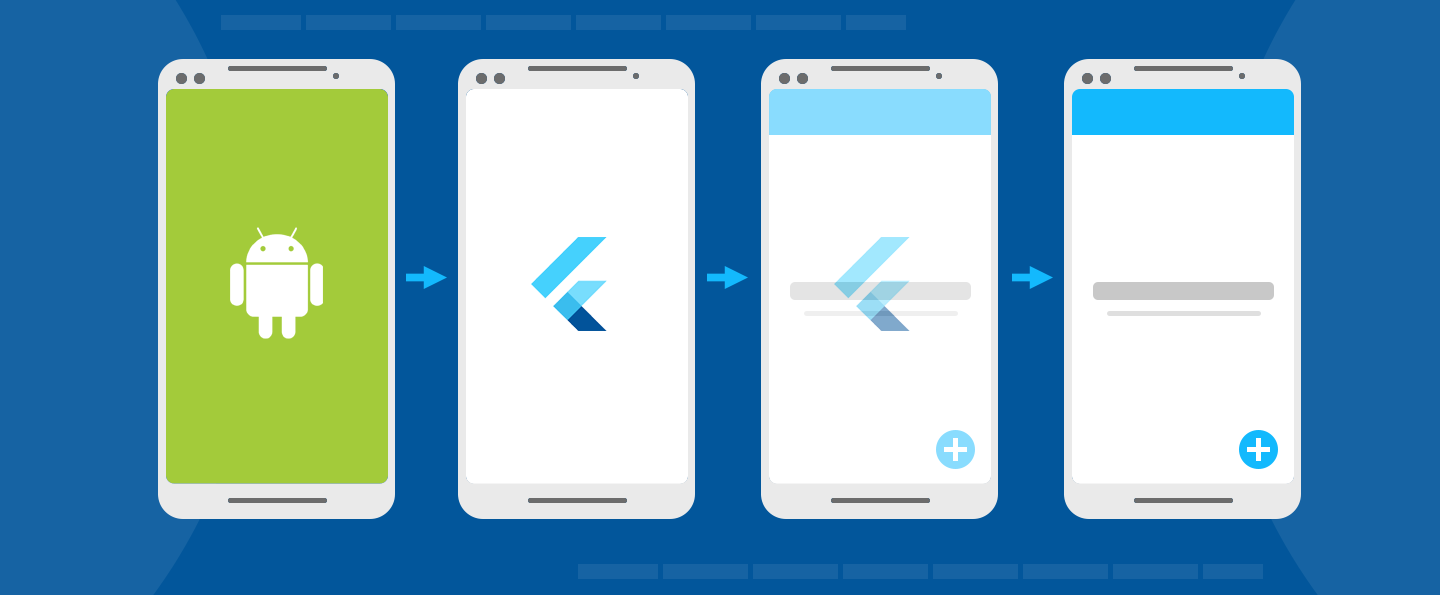
啟動屏(也稱為啟動畫面)可在您的 Android 應用載入時提供簡單的初始體驗。它們為您的應用奠定基礎,同時允許應用引擎載入和您的應用初始化。
概述
#在 Android 中,您可以控制兩個獨立的螢幕:一個在您的 Android 應用初始化時顯示的啟動畫面,以及一個在 Flutter 體驗初始化時顯示的啟動屏。
初始化應用
#每個 Android 應用都需要初始化時間,在此期間作業系統會設定應用的程序。Android 提供了啟動畫面的概念,用於在應用初始化時顯示 Drawable。
Drawable 是一個 Android 圖形。要了解如何在 Android Studio 中將 Drawable 新增到 Flutter 專案,請參閱 Android 開發者文件中的將 drawable 匯入到您的專案中。
預設的 Flutter 專案模板包含啟動主題和啟動背景的定義。您可以透過編輯 styles.xml 來自定義此設定,您可以在其中定義一個主題,其 windowBackground 設定為應顯示為啟動畫面的 Drawable。
<style name="LaunchTheme" parent="@android:style/Theme.Black.NoTitleBar">
    <item name="android:windowBackground">@drawable/launch_background</item>
</style>此外,styles.xml 還定義了一個普通主題,該主題在啟動畫面消失後應用於 FlutterActivity。普通主題背景僅在啟動屏消失後的極短時間內顯示,並在方向更改和 Activity 恢復期間顯示。因此,建議普通主題使用與 Flutter UI 主要背景顏色相似的純色背景。
<style name="NormalTheme" parent="@android:style/Theme.Black.NoTitleBar">
    <item name="android:windowBackground">@drawable/normal_background</item>
</style>
在 AndroidManifest.xml 中設定 FlutterActivity
#在 AndroidManifest.xml 中,將 FlutterActivity 的 theme 設定為啟動主題。然後,向所需的 FlutterActivity 新增一個元資料元素,以指示 Flutter 在適當的時候從啟動主題切換到普通主題。
<activity
    android:name=".MyActivity"
    android:theme="@style/LaunchTheme"
    // ...
    >
    <meta-data
        android:name="io.flutter.embedding.android.NormalTheme"
        android:resource="@style/NormalTheme"
        />
    <intent-filter>
        <action android:name="android.intent.action.MAIN"/>
        <category android:name="android.intent.category.LAUNCHER"/>
    </intent-filter>
</activity>
現在,Android 應用在初始化時會顯示所需的啟動畫面。
Android 12
#要在 Android 12 上配置您的啟動畫面,請參閱Android 啟動屏。
從 Android 12 開始,您必須在 styles.xml 檔案中使用新的啟動屏 API。考慮為 Android 12 及更高版本建立備用的資原始檔。同時確保您的背景圖片符合圖標準則;請參閱Android 啟動屏以獲取更多詳細資訊。
<style name="LaunchTheme" parent="@android:style/Theme.Black.NoTitleBar">
    <item name="android:windowSplashScreenBackground">@color/bgColor</item>
    <item name="android:windowSplashScreenAnimatedIcon">@drawable/launch_background</item>
</style>
請確保在您的 manifest 中未設定 io.flutter.embedding.android.SplashScreenDrawable,並且未實現 provideSplashScreen,因為這些 API 已被棄用。這樣做會導致 Android 啟動畫面在應用啟動時平滑地淡入 Flutter,並且應用可能會崩潰。
一些應用可能希望繼續在 Flutter 中顯示 Android 啟動畫面的最後一幀。例如,這可以在 Dart 中繼續進行其他載入的同時保持單個幀的視覺效果。為此,以下 Android API 可能很有幫助
import android.os.Build
import android.os.Bundle
import androidx.core.view.WindowCompat
import io.flutter.embedding.android.FlutterActivity

class MainActivity : FlutterActivity() {
  override fun onCreate(savedInstanceState: Bundle?) {
    // Aligns the Flutter view vertically with the window.
    WindowCompat.setDecorFitsSystemWindows(getWindow(), false)

    if (Build.VERSION.SDK_INT >= Build.VERSION_CODES.S) {
      // Disable the Android splash screen fade out animation to avoid
      // a flicker before the similar frame is drawn in Flutter.
      splashScreen.setOnExitAnimationListener { splashScreenView -> splashScreenView.remove() }
    }

    super.onCreate(savedInstanceState)
  }
}import android.os.Build;
import android.os.Bundle;
import android.window.SplashScreenView;
import androidx.core.view.WindowCompat;
import io.flutter.embedding.android.FlutterActivity;
public class MainActivity extends FlutterActivity {
@Override
protected void onCreate(Bundle savedInstanceState) {
// Aligns the Flutter view vertically with the window.
WindowCompat.setDecorFitsSystemWindows(getWindow(), false);
if (Build.VERSION.SDK_INT >= Build.VERSION_CODES.S) {
// Disable the Android splash screen fade out animation to avoid
// a flicker before the similar frame is drawn in Flutter.
getSplashScreen()
.setOnExitAnimationListener(
(SplashScreenView splashScreenView) -> {
splashScreenView.remove();
});
}
super.onCreate(savedInstanceState);
}
}然後,您可以重新實現 Flutter 中的第一幀,該幀在螢幕上以相同位置顯示您的 Android 啟動畫面的元素。有關此示例,請檢視Android 啟動屏示例應用。