理解約束
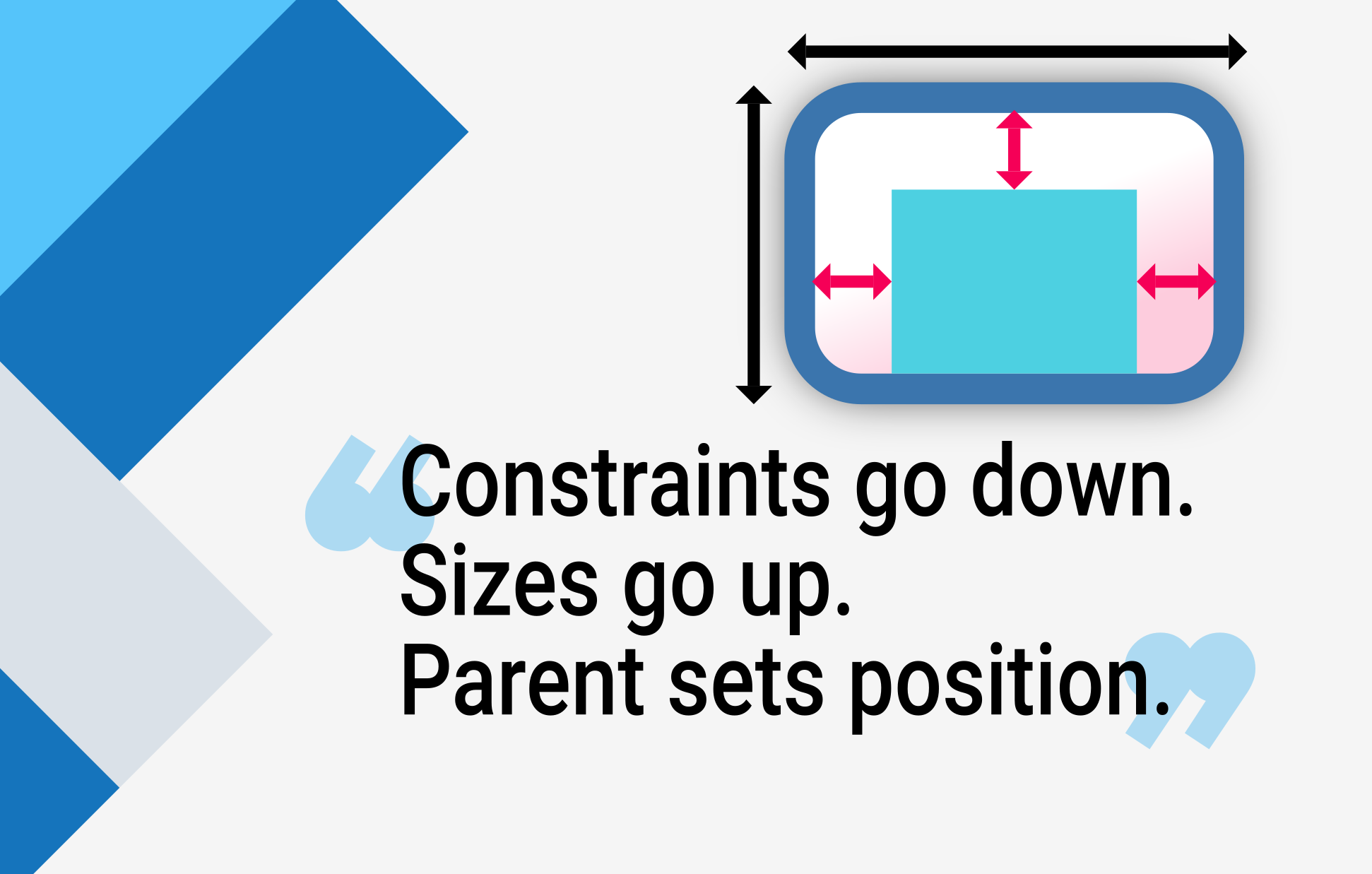
當一個學習 Flutter 的人問你為什麼一個設定了 width: 100 的 widget 寬度不是 100 畫素時,你通常會告訴他們將該 widget 放在 Center 裡面,對吧?
別這麼做。
如果你這麼做了,他們會一次又一次地回來問,為什麼某個 FittedBox 沒有起作用,為什麼 Column 溢位了,或者 IntrinsicWidth 到底應該做什麼。
相反,首先告訴他們 Flutter 的佈局與 HTML 佈局(他們可能來自那裡)非常不同,然後讓他們記住以下規則:
如果不瞭解這條規則,就無法真正理解 Flutter 的佈局,所以 Flutter 開發者應該儘早學會它。
詳細來說
- 一個 widget 從它的 父級 那裡獲得自己的 約束。約束 只是 4 個 doubles 的集合:最小寬度和最大寬度,以及最小高度和最大高度。
- 然後,widget 會遍歷它自己的 子級 列表。一次一個,widget 會告訴它的子級它們各自的 約束 是什麼(每個子級的約束可能不同),然後詢問每個子級它想要的大小。
- 然後,widget 會逐一定位它的子級(在
x軸上水平定位,在y軸上垂直定位)。 - 最後,widget 會將它自己的尺寸(當然,是在原始約束範圍內的)告知其父級。
例如,如果一個組合 widget 包含一個帶有一些填充的列,並希望按如下方式佈局其兩個子級:
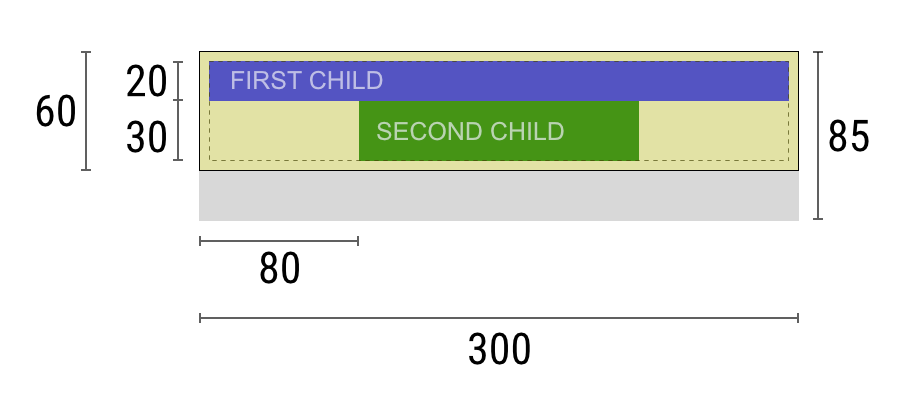
這個協商過程大致如下:
Widget:“嘿,父級,我的約束是什麼?”
父級:“你的寬度必須在 0 到 300 畫素之間,高度在 0 到 85 之間。”
Widget:“嗯,因為我想要 5 畫素的填充,所以我的子級的最大寬度是 290 畫素,最大高度是 75 畫素。”
Widget:“嘿,第一個子級,你的寬度必須在 0 到 290 畫素之間,高度在 0 到 75 畫素之間。”
第一個子級:“好的,那麼我希望的尺寸是寬度 290 畫素,高度 20 畫素。”
Widget:“嗯,因為我打算把第二個子級放在第一個子級下面,所以我的第二個子級只有 55 畫素的高度。”
Widget:“嘿,第二個子級,你的寬度必須在 0 到 290 之間,高度在 0 到 55 之間。”
第二個子級:“好的,我希望的尺寸是寬度 140 畫素,高度 30 畫素。”
Widget:“很好。我的第一個子級的定位是 x: 5 和 y: 5,我的第二個子級的定位是 x: 80 和 y: 25。”
Widget:“嘿,父級,我決定我的尺寸是寬度 300 畫素,高度 60 畫素。”
侷限性
#Flutter 的佈局引擎設計成單次傳遞過程。這意味著 Flutter 可以非常高效地佈局 widget,但這也會帶來一些限制:
widget 只能在父級提供的約束範圍內決定自己的大小。這意味著 widget 通常無法獲得任意想要的大小。
widget無法知道自身在螢幕上的位置,也不能決定自身的位置,因為決定 widget 位置的是它的父級。
由於父級的尺寸和位置又取決於它自己的父級,因此在不考慮整個 widget 樹的情況下,精確定義任何 widget 的尺寸和位置是不可能的。
如果子級想要的尺寸與父級不符,而父級又沒有足夠的資訊來對齊它,那麼子級的尺寸可能會被忽略。在定義對齊時要具體。
在 Flutter 中,widget 由其底層的 RenderBox 物件渲染。Flutter 中的許多 box,尤其是那些只接受單個子級的,會將它們收到的約束傳遞給它們的子級。
通常,根據處理約束的方式,有三種類型的 box:
- 那些試圖儘可能大的。例如,由
Center和ListView使用的 box。 - 那些試圖與其子級一樣大的。例如,由
Transform和Opacity使用的 box。 - 那些試圖具有特定尺寸的。例如,由
Image和Text使用的 box。
一些 widget,例如 Container,會根據其建構函式的引數從一種型別變為另一種型別。Container 建構函式預設情況下會嘗試儘可能大,但如果你給它一個 width,它會嘗試遵守該值並具有該特定尺寸。
其他 widget,例如 Row 和 Column(flex box),會根據它們獲得的約束而變化,正如 Flex 部分所述。
示例
#為了獲得互動體驗,請使用以下 DartPad。使用編號的水平捲軸在 29 個不同示例之間切換。
import 'package:flutter/material.dart';
void main() => runApp(const HomePage());
const red = Colors.red;
const green = Colors.green;
const blue = Colors.blue;
const big = TextStyle(fontSize: 30);
//////////////////////////////////////////////////
class HomePage extends StatelessWidget {
const HomePage({super.key});
@override
Widget build(BuildContext context) {
return const FlutterLayoutArticle([
Example1(),
Example2(),
Example3(),
Example4(),
Example5(),
Example6(),
Example7(),
Example8(),
Example9(),
Example10(),
Example11(),
Example12(),
Example13(),
Example14(),
Example15(),
Example16(),
Example17(),
Example18(),
Example19(),
Example20(),
Example21(),
Example22(),
Example23(),
Example24(),
Example25(),
Example26(),
Example27(),
Example28(),
Example29(),
]);
}
}
//////////////////////////////////////////////////
abstract class Example extends StatelessWidget {
const Example({super.key});
String get code;
String get explanation;
}
//////////////////////////////////////////////////
class FlutterLayoutArticle extends StatefulWidget {
const FlutterLayoutArticle(this.examples, {super.key});
final List<Example> examples;
@override
State<FlutterLayoutArticle> createState() => _FlutterLayoutArticleState();
}
//////////////////////////////////////////////////
class _FlutterLayoutArticleState extends State<FlutterLayoutArticle> {
late int count;
late Widget example;
late String code;
late String explanation;
@override
void initState() {
count = 1;
code = const Example1().code;
explanation = const Example1().explanation;
super.initState();
}
@override
void didUpdateWidget(FlutterLayoutArticle oldWidget) {
super.didUpdateWidget(oldWidget);
var example = widget.examples[count - 1];
code = example.code;
explanation = example.explanation;
}
@override
Widget build(BuildContext context) {
return MaterialApp(
debugShowCheckedModeBanner: false,
title: 'Flutter Layout Article',
home: SafeArea(
child: Material(
color: Colors.black,
child: FittedBox(
child: Container(
width: 400,
height: 670,
color: const Color(0xFFCCCCCC),
child: Column(
crossAxisAlignment: CrossAxisAlignment.center,
children: [
Expanded(
child: ConstrainedBox(
constraints: const BoxConstraints.tightFor(
width: double.infinity,
height: double.infinity,
),
child: widget.examples[count - 1],
),
),
Container(
height: 50,
width: double.infinity,
color: Colors.black,
child: SingleChildScrollView(
scrollDirection: Axis.horizontal,
child: Row(
mainAxisSize: MainAxisSize.min,
children: [
for (int i = 0; i < widget.examples.length; i++)
Container(
width: 58,
padding: const EdgeInsets.only(left: 4, right: 4),
child: button(i + 1),
),
],
),
),
),
Container(
height: 273,
color: Colors.grey[50],
child: Scrollbar(
child: SingleChildScrollView(
key: ValueKey(count),
child: Padding(
padding: const EdgeInsets.all(10),
child: Column(
children: [
Center(child: Text(code)),
const SizedBox(height: 15),
Text(
explanation,
style: TextStyle(
color: Colors.blue[900],
fontStyle: FontStyle.italic,
),
),
],
),
),
),
),
),
],
),
),
),
),
),
);
}
Widget button(int exampleNumber) {
return Button(
key: ValueKey('button$exampleNumber'),
isSelected: count == exampleNumber,
exampleNumber: exampleNumber,
onPressed: () {
showExample(
exampleNumber,
widget.examples[exampleNumber - 1].code,
widget.examples[exampleNumber - 1].explanation,
);
},
);
}
void showExample(int exampleNumber, String code, String explanation) {
setState(() {
count = exampleNumber;
this.code = code;
this.explanation = explanation;
});
}
}
//////////////////////////////////////////////////
class Button extends StatelessWidget {
final bool isSelected;
final int exampleNumber;
final VoidCallback onPressed;
const Button({
super.key,
required this.isSelected,
required this.exampleNumber,
required this.onPressed,
});
@override
Widget build(BuildContext context) {
return TextButton(
style: TextButton.styleFrom(
foregroundColor: Colors.white,
backgroundColor: isSelected ? Colors.grey : Colors.grey[800],
),
child: Text(exampleNumber.toString()),
onPressed: () {
Scrollable.ensureVisible(
context,
duration: const Duration(milliseconds: 350),
curve: Curves.easeOut,
alignment: 0.5,
);
onPressed();
},
);
}
}
//////////////////////////////////////////////////
class Example1 extends Example {
const Example1({super.key});
@override
final code = 'Container(color: red)';
@override
final explanation =
'The screen is the parent of the Container, '
'and it forces the Container to be exactly the same size as the screen.'
'\n\n'
'So the Container fills the screen and paints it red.';
@override
Widget build(BuildContext context) {
return Container(color: red);
}
}
//////////////////////////////////////////////////
class Example2 extends Example {
const Example2({super.key});
@override
final code = 'Container(width: 100, height: 100, color: red)';
@override
final String explanation =
'The red Container wants to be 100x100, but it can\'t, '
'because the screen forces it to be exactly the same size as the screen.'
'\n\n'
'So the Container fills the screen.';
@override
Widget build(BuildContext context) {
return Container(width: 100, height: 100, color: red);
}
}
//////////////////////////////////////////////////
class Example3 extends Example {
const Example3({super.key});
@override
final code =
'Center(\n'
' child: Container(width: 100, height: 100, color: red))';
@override
final String explanation =
'The screen forces the Center to be exactly the same size as the screen, '
'so the Center fills the screen.'
'\n\n'
'The Center tells the Container that it can be any size it wants, but not bigger than the screen.'
'Now the Container can indeed be 100x100.';
@override
Widget build(BuildContext context) {
return Center(child: Container(width: 100, height: 100, color: red));
}
}
//////////////////////////////////////////////////
class Example4 extends Example {
const Example4({super.key});
@override
final code =
'Align(\n'
' alignment: Alignment.bottomRight,\n'
' child: Container(width: 100, height: 100, color: red))';
@override
final String explanation =
'This is different from the previous example in that it uses Align instead of Center.'
'\n\n'
'Align also tells the Container that it can be any size it wants, but if there is empty space it won\'t center the Container. '
'Instead, it aligns the Container to the bottom-right of the available space.';
@override
Widget build(BuildContext context) {
return Align(
alignment: Alignment.bottomRight,
child: Container(width: 100, height: 100, color: red),
);
}
}
//////////////////////////////////////////////////
class Example5 extends Example {
const Example5({super.key});
@override
final code =
'Center(\n'
' child: Container(\n'
' color: red,\n'
' width: double.infinity,\n'
' height: double.infinity))';
@override
final String explanation =
'The screen forces the Center to be exactly the same size as the screen, '
'so the Center fills the screen.'
'\n\n'
'The Center tells the Container that it can be any size it wants, but not bigger than the screen.'
'The Container wants to be of infinite size, but since it can\'t be bigger than the screen, it just fills the screen.';
@override
Widget build(BuildContext context) {
return Center(
child: Container(
width: double.infinity,
height: double.infinity,
color: red,
),
);
}
}
//////////////////////////////////////////////////
class Example6 extends Example {
const Example6({super.key});
@override
final code = 'Center(child: Container(color: red))';
@override
final String explanation =
'The screen forces the Center to be exactly the same size as the screen, '
'so the Center fills the screen.'
'\n\n'
'The Center tells the Container that it can be any size it wants, but not bigger than the screen.'
'\n\n'
'Since the Container has no child and no fixed size, it decides it wants to be as big as possible, so it fills the whole screen.'
'\n\n'
'But why does the Container decide that? '
'Simply because that\'s a design decision by those who created the Container widget. '
'It could have been created differently, and you have to read the Container documentation to understand how it behaves, depending on the circumstances. ';
@override
Widget build(BuildContext context) {
return Center(child: Container(color: red));
}
}
//////////////////////////////////////////////////
class Example7 extends Example {
const Example7({super.key});
@override
final code =
'Center(\n'
' child: Container(color: red\n'
' child: Container(color: green, width: 30, height: 30)))';
@override
final String explanation =
'The screen forces the Center to be exactly the same size as the screen, '
'so the Center fills the screen.'
'\n\n'
'The Center tells the red Container that it can be any size it wants, but not bigger than the screen.'
'Since the red Container has no size but has a child, it decides it wants to be the same size as its child.'
'\n\n'
'The red Container tells its child that it can be any size it wants, but not bigger than the screen.'
'\n\n'
'The child is a green Container that wants to be 30x30.'
'\n\n'
'Since the red `Container` has no size but has a child, it decides it wants to be the same size as its child. '
'The red color isn\'t visible, since the green Container entirely covers all of the red Container.';
@override
Widget build(BuildContext context) {
return Center(
child: Container(
color: red,
child: Container(color: green, width: 30, height: 30),
),
);
}
}
//////////////////////////////////////////////////
class Example8 extends Example {
const Example8({super.key});
@override
final code =
'Center(\n'
' child: Container(color: red\n'
' padding: const EdgeInsets.all(20),\n'
' child: Container(color: green, width: 30, height: 30)))';
@override
final String explanation =
'The red Container sizes itself to its children size, but it takes its own padding into consideration. '
'So it is also 30x30 plus padding. '
'The red color is visible because of the padding, and the green Container has the same size as in the previous example.';
@override
Widget build(BuildContext context) {
return Center(
child: Container(
padding: const EdgeInsets.all(20),
color: red,
child: Container(color: green, width: 30, height: 30),
),
);
}
}
//////////////////////////////////////////////////
class Example9 extends Example {
const Example9({super.key});
@override
final code =
'ConstrainedBox(\n'
' constraints: BoxConstraints(\n'
' minWidth: 70, minHeight: 70,\n'
' maxWidth: 150, maxHeight: 150),\n'
' child: Container(color: red, width: 10, height: 10)))';
@override
final String explanation =
'You might guess that the Container has to be between 70 and 150 pixels, but you would be wrong. '
'The ConstrainedBox only imposes ADDITIONAL constraints from those it receives from its parent.'
'\n\n'
'Here, the screen forces the ConstrainedBox to be exactly the same size as the screen, '
'so it tells its child Container to also assume the size of the screen, '
'thus ignoring its \'constraints\' parameter.';
@override
Widget build(BuildContext context) {
return ConstrainedBox(
constraints: const BoxConstraints(
minWidth: 70,
minHeight: 70,
maxWidth: 150,
maxHeight: 150,
),
child: Container(color: red, width: 10, height: 10),
);
}
}
//////////////////////////////////////////////////
class Example10 extends Example {
const Example10({super.key});
@override
final code =
'Center(\n'
' child: ConstrainedBox(\n'
' constraints: BoxConstraints(\n'
' minWidth: 70, minHeight: 70,\n'
' maxWidth: 150, maxHeight: 150),\n'
' child: Container(color: red, width: 10, height: 10))))';
@override
final String explanation =
'Now, Center allows ConstrainedBox to be any size up to the screen size.'
'\n\n'
'The ConstrainedBox imposes ADDITIONAL constraints from its \'constraints\' parameter onto its child.'
'\n\n'
'The Container must be between 70 and 150 pixels. It wants to have 10 pixels, so it will end up having 70 (the MINIMUM).';
@override
Widget build(BuildContext context) {
return Center(
child: ConstrainedBox(
constraints: const BoxConstraints(
minWidth: 70,
minHeight: 70,
maxWidth: 150,
maxHeight: 150,
),
child: Container(color: red, width: 10, height: 10),
),
);
}
}
//////////////////////////////////////////////////
class Example11 extends Example {
const Example11({super.key});
@override
final code =
'Center(\n'
' child: ConstrainedBox(\n'
' constraints: BoxConstraints(\n'
' minWidth: 70, minHeight: 70,\n'
' maxWidth: 150, maxHeight: 150),\n'
' child: Container(color: red, width: 1000, height: 1000))))';
@override
final String explanation =
'Center allows ConstrainedBox to be any size up to the screen size.'
'The ConstrainedBox imposes ADDITIONAL constraints from its \'constraints\' parameter onto its child'
'\n\n'
'The Container must be between 70 and 150 pixels. It wants to have 1000 pixels, so it ends up having 150 (the MAXIMUM).';
@override
Widget build(BuildContext context) {
return Center(
child: ConstrainedBox(
constraints: const BoxConstraints(
minWidth: 70,
minHeight: 70,
maxWidth: 150,
maxHeight: 150,
),
child: Container(color: red, width: 1000, height: 1000),
),
);
}
}
//////////////////////////////////////////////////
class Example12 extends Example {
const Example12({super.key});
@override
final code =
'Center(\n'
' child: ConstrainedBox(\n'
' constraints: BoxConstraints(\n'
' minWidth: 70, minHeight: 70,\n'
' maxWidth: 150, maxHeight: 150),\n'
' child: Container(color: red, width: 100, height: 100))))';
@override
final String explanation =
'Center allows ConstrainedBox to be any size up to the screen size.'
'ConstrainedBox imposes ADDITIONAL constraints from its \'constraints\' parameter onto its child.'
'\n\n'
'The Container must be between 70 and 150 pixels. It wants to have 100 pixels, and that\'s the size it has, since that\'s between 70 and 150.';
@override
Widget build(BuildContext context) {
return Center(
child: ConstrainedBox(
constraints: const BoxConstraints(
minWidth: 70,
minHeight: 70,
maxWidth: 150,
maxHeight: 150,
),
child: Container(color: red, width: 100, height: 100),
),
);
}
}
//////////////////////////////////////////////////
class Example13 extends Example {
const Example13({super.key});
@override
final code =
'UnconstrainedBox(\n'
' child: Container(color: red, width: 20, height: 50));';
@override
final String explanation =
'The screen forces the UnconstrainedBox to be exactly the same size as the screen.'
'However, the UnconstrainedBox lets its child Container be any size it wants.';
@override
Widget build(BuildContext context) {
return UnconstrainedBox(
child: Container(color: red, width: 20, height: 50),
);
}
}
//////////////////////////////////////////////////
class Example14 extends Example {
const Example14({super.key});
@override
final code =
'UnconstrainedBox(\n'
' child: Container(color: red, width: 4000, height: 50));';
@override
final String explanation =
'The screen forces the UnconstrainedBox to be exactly the same size as the screen, '
'and UnconstrainedBox lets its child Container be any size it wants.'
'\n\n'
'Unfortunately, in this case the Container has 4000 pixels of width and is too big to fit in the UnconstrainedBox, '
'so the UnconstrainedBox displays the much dreaded "overflow warning".';
@override
Widget build(BuildContext context) {
return UnconstrainedBox(
child: Container(color: red, width: 4000, height: 50),
);
}
}
//////////////////////////////////////////////////
class Example15 extends Example {
const Example15({super.key});
@override
final code =
'OverflowBox(\n'
' minWidth: 0,'
' minHeight: 0,'
' maxWidth: double.infinity,'
' maxHeight: double.infinity,'
' child: Container(color: red, width: 4000, height: 50));';
@override
final String explanation =
'The screen forces the OverflowBox to be exactly the same size as the screen, '
'and OverflowBox lets its child Container be any size it wants.'
'\n\n'
'OverflowBox is similar to UnconstrainedBox, and the difference is that it won\'t display any warnings if the child doesn\'t fit the space.'
'\n\n'
'In this case the Container is 4000 pixels wide, and is too big to fit in the OverflowBox, '
'but the OverflowBox simply shows as much as it can, with no warnings given.';
@override
Widget build(BuildContext context) {
return OverflowBox(
minWidth: 0,
minHeight: 0,
maxWidth: double.infinity,
maxHeight: double.infinity,
child: Container(color: red, width: 4000, height: 50),
);
}
}
//////////////////////////////////////////////////
class Example16 extends Example {
const Example16({super.key});
@override
final code =
'UnconstrainedBox(\n'
' child: Container(color: Colors.red, width: double.infinity, height: 100));';
@override
final String explanation =
'This won\'t render anything, and you\'ll see an error in the console.'
'\n\n'
'The UnconstrainedBox lets its child be any size it wants, '
'however its child is a Container with infinite size.'
'\n\n'
'Flutter can\'t render infinite sizes, so it throws an error with the following message: '
'"BoxConstraints forces an infinite width."';
@override
Widget build(BuildContext context) {
return UnconstrainedBox(
child: Container(color: Colors.red, width: double.infinity, height: 100),
);
}
}
//////////////////////////////////////////////////
class Example17 extends Example {
const Example17({super.key});
@override
final code =
'UnconstrainedBox(\n'
' child: LimitedBox(maxWidth: 100,\n'
' child: Container(color: Colors.red,\n'
' width: double.infinity, height: 100));';
@override
final String explanation =
'Here you won\'t get an error anymore, '
'because when the LimitedBox is given an infinite size by the UnconstrainedBox, '
'it passes a maximum width of 100 down to its child.'
'\n\n'
'If you swap the UnconstrainedBox for a Center widget, '
'the LimitedBox won\'t apply its limit anymore (since its limit is only applied when it gets infinite constraints), '
'and the width of the Container is allowed to grow past 100.'
'\n\n'
'This explains the difference between a LimitedBox and a ConstrainedBox.';
@override
Widget build(BuildContext context) {
return UnconstrainedBox(
child: LimitedBox(
maxWidth: 100,
child: Container(
color: Colors.red,
width: double.infinity,
height: 100,
),
),
);
}
}
//////////////////////////////////////////////////
class Example18 extends Example {
const Example18({super.key});
@override
final code =
'FittedBox(\n'
' child: Text(\'Some Example Text.\'));';
@override
final String explanation =
'The screen forces the FittedBox to be exactly the same size as the screen.'
'The Text has some natural width (also called its intrinsic width) that depends on the amount of text, its font size, and so on.'
'\n\n'
'The FittedBox lets the Text be any size it wants, '
'but after the Text tells its size to the FittedBox, '
'the FittedBox scales the Text until it fills all of the available width.';
@override
Widget build(BuildContext context) {
return const FittedBox(child: Text('Some Example Text.'));
}
}
//////////////////////////////////////////////////
class Example19 extends Example {
const Example19({super.key});
@override
final code =
'Center(\n'
' child: FittedBox(\n'
' child: Text(\'Some Example Text.\')));';
@override
final String explanation =
'But what happens if you put the FittedBox inside of a Center widget? '
'The Center lets the FittedBox be any size it wants, up to the screen size.'
'\n\n'
'The FittedBox then sizes itself to the Text, and lets the Text be any size it wants.'
'\n\n'
'Since both FittedBox and the Text have the same size, no scaling happens.';
@override
Widget build(BuildContext context) {
return const Center(child: FittedBox(child: Text('Some Example Text.')));
}
}
////////////////////////////////////////////////////
class Example20 extends Example {
const Example20({super.key});
@override
final code =
'Center(\n'
' child: FittedBox(\n'
' child: Text(\'…\')));';
@override
final String explanation =
'However, what happens if FittedBox is inside of a Center widget, but the Text is too large to fit the screen?'
'\n\n'
'FittedBox tries to size itself to the Text, but it can\'t be bigger than the screen. '
'It then assumes the screen size, and resizes Text so that it fits the screen, too.';
@override
Widget build(BuildContext context) {
return const Center(
child: FittedBox(
child: Text(
'This is some very very very large text that is too big to fit a regular screen in a single line.',
),
),
);
}
}
//////////////////////////////////////////////////
class Example21 extends Example {
const Example21({super.key});
@override
final code =
'Center(\n'
' child: Text(\'…\'));';
@override
final String explanation =
'If, however, you remove the FittedBox, '
'the Text gets its maximum width from the screen, '
'and breaks the line so that it fits the screen.';
@override
Widget build(BuildContext context) {
return const Center(
child: Text(
'This is some very very very large text that is too big to fit a regular screen in a single line.',
),
);
}
}
//////////////////////////////////////////////////
class Example22 extends Example {
const Example22({super.key});
@override
final code =
'FittedBox(\n'
' child: Container(\n'
' height: 20, width: double.infinity));';
@override
final String explanation =
'FittedBox can only scale a widget that is BOUNDED (has non-infinite width and height).'
'Otherwise, it won\'t render anything, and you\'ll see an error in the console.';
@override
Widget build(BuildContext context) {
return FittedBox(
child: Container(height: 20, width: double.infinity, color: Colors.red),
);
}
}
//////////////////////////////////////////////////
class Example23 extends Example {
const Example23({super.key});
@override
final code =
'Row(children:[\n'
' Container(color: red, child: Text(\'Hello!\'))\n'
' Container(color: green, child: Text(\'Goodbye!\'))]';
@override
final String explanation =
'The screen forces the Row to be exactly the same size as the screen.'
'\n\n'
'Just like an UnconstrainedBox, the Row won\'t impose any constraints onto its children, '
'and instead lets them be any size they want.'
'\n\n'
'The Row then puts them side-by-side, and any extra space remains empty.';
@override
Widget build(BuildContext context) {
return Row(
children: [
Container(
color: red,
child: const Text('Hello!', style: big),
),
Container(
color: green,
child: const Text('Goodbye!', style: big),
),
],
);
}
}
//////////////////////////////////////////////////
class Example24 extends Example {
const Example24({super.key});
@override
final code =
'Row(children:[\n'
' Container(color: red, child: Text(\'…\'))\n'
' Container(color: green, child: Text(\'Goodbye!\'))]';
@override
final String explanation =
'Since the Row won\'t impose any constraints onto its children, '
'it\'s quite possible that the children might be too big to fit the available width of the Row.'
'In this case, just like an UnconstrainedBox, the Row displays the "overflow warning".';
@override
Widget build(BuildContext context) {
return Row(
children: [
Container(
color: red,
child: const Text(
'This is a very long text that '
'won\'t fit the line.',
style: big,
),
),
Container(
color: green,
child: const Text('Goodbye!', style: big),
),
],
);
}
}
//////////////////////////////////////////////////
class Example25 extends Example {
const Example25({super.key});
@override
final code =
'Row(children:[\n'
' Expanded(\n'
' child: Container(color: red, child: Text(\'…\')))\n'
' Container(color: green, child: Text(\'Goodbye!\'))]';
@override
final String explanation =
'When a Row\'s child is wrapped in an Expanded widget, the Row won\'t let this child define its own width anymore.'
'\n\n'
'Instead, it defines the Expanded width according to the other children, and only then the Expanded widget forces the original child to have the Expanded\'s width.'
'\n\n'
'In other words, once you use Expanded, the original child\'s width becomes irrelevant, and is ignored.';
@override
Widget build(BuildContext context) {
return Row(
children: [
Expanded(
child: Center(
child: Container(
color: red,
child: const Text(
'This is a very long text that won\'t fit the line.',
style: big,
),
),
),
),
Container(
color: green,
child: const Text('Goodbye!', style: big),
),
],
);
}
}
//////////////////////////////////////////////////
class Example26 extends Example {
const Example26({super.key});
@override
final code =
'Row(children:[\n'
' Expanded(\n'
' child: Container(color: red, child: Text(\'…\')))\n'
' Expanded(\n'
' child: Container(color: green, child: Text(\'Goodbye!\'))]';
@override
final String explanation =
'If all of Row\'s children are wrapped in Expanded widgets, each Expanded has a size proportional to its flex parameter, '
'and only then each Expanded widget forces its child to have the Expanded\'s width.'
'\n\n'
'In other words, Expanded ignores the preferred width of its children.';
@override
Widget build(BuildContext context) {
return Row(
children: [
Expanded(
child: Container(
color: red,
child: const Text(
'This is a very long text that won\'t fit the line.',
style: big,
),
),
),
Expanded(
child: Container(
color: green,
child: const Text('Goodbye!', style: big),
),
),
],
);
}
}
//////////////////////////////////////////////////
class Example27 extends Example {
const Example27({super.key});
@override
final code =
'Row(children:[\n'
' Flexible(\n'
' child: Container(color: red, child: Text(\'…\')))\n'
' Flexible(\n'
' child: Container(color: green, child: Text(\'Goodbye!\'))]';
@override
final String explanation =
'The only difference if you use Flexible instead of Expanded, '
'is that Flexible lets its child be SMALLER than the Flexible width, '
'while Expanded forces its child to have the same width of the Expanded.'
'\n\n'
'But both Expanded and Flexible ignore their children\'s width when sizing themselves.'
'\n\n'
'This means that it\'s IMPOSSIBLE to expand Row children proportionally to their sizes. '
'The Row either uses the exact child\'s width, or ignores it completely when you use Expanded or Flexible.';
@override
Widget build(BuildContext context) {
return Row(
children: [
Flexible(
child: Container(
color: red,
child: const Text(
'This is a very long text that won\'t fit the line.',
style: big,
),
),
),
Flexible(
child: Container(
color: green,
child: const Text('Goodbye!', style: big),
),
),
],
);
}
}
//////////////////////////////////////////////////
class Example28 extends Example {
const Example28({super.key});
@override
final code =
'Scaffold(\n'
' body: Container(color: blue,\n'
' child: Column(\n'
' children: [\n'
' Text(\'Hello!\'),\n'
' Text(\'Goodbye!\')])))';
@override
final String explanation =
'The screen forces the Scaffold to be exactly the same size as the screen, '
'so the Scaffold fills the screen.'
'\n\n'
'The Scaffold tells the Container that it can be any size it wants, but not bigger than the screen.'
'\n\n'
'When a widget tells its child that it can be smaller than a certain size, '
'we say the widget supplies "loose" constraints to its child. More on that later.';
@override
Widget build(BuildContext context) {
return Scaffold(
body: Container(
color: blue,
child: const Column(children: [Text('Hello!'), Text('Goodbye!')]),
),
);
}
}
//////////////////////////////////////////////////
class Example29 extends Example {
const Example29({super.key});
@override
final code =
'Scaffold(\n'
' body: Container(color: blue,\n'
' child: SizedBox.expand(\n'
' child: Column(\n'
' children: [\n'
' Text(\'Hello!\'),\n'
' Text(\'Goodbye!\')]))))';
@override
final String explanation =
'If you want the Scaffold\'s child to be exactly the same size as the Scaffold itself, '
'you can wrap its child with SizedBox.expand.'
'\n\n'
'When a widget tells its child that it must be of a certain size, '
'we say the widget supplies "tight" constraints to its child. More on that later.';
@override
Widget build(BuildContext context) {
return Scaffold(
body: SizedBox.expand(
child: Container(
color: blue,
child: const Column(children: [Text('Hello!'), Text('Goodbye!')]),
),
),
);
}
}
//////////////////////////////////////////////////
如果您願意,可以從 這個 GitHub 倉庫 獲取程式碼。
示例將在以下各節中進行解釋。
示例 1
#
Container(color: red)螢幕是 Container 的父級,它強制 Container 的尺寸與螢幕完全相同。
因此,Container 填滿了螢幕並將其塗成紅色。
示例 2
#
Container(width: 100, height: 100, color: red)紅色的 Container 想要 100 × 100,但它不能,因為螢幕強制它具有與螢幕完全相同的尺寸。
因此,Container 填滿了螢幕。
示例 3
#
Center(child: Container(width: 100, height: 100, color: red))螢幕強制 Center 具有與螢幕完全相同的尺寸,因此 Center 填滿了螢幕。
Center 告訴 Container 它可以是任意大小,但不能大於螢幕。現在 Container 可以是 100 × 100 了。
示例 4
#
Align(
  alignment: Alignment.bottomRight,
  child: Container(width: 100, height: 100, color: red),
)
與上一個示例不同的是,它使用了 Align 而不是 Center。
Align 也告訴 Container 它可以是任意大小,但如果存在空白區域,它不會將 Container 居中。相反,它會將 Container 對齊到可用空間的右下角。
示例 5
#
Center(
  child: Container(
    width: double.infinity,
    height: double.infinity,
    color: red,
  ),
)
螢幕強制 Center 具有與螢幕完全相同的尺寸,因此 Center 填滿了螢幕。
Center 告訴 Container 它可以是任意大小,但不能大於螢幕。Container 想要無限大小,但由於不能大於螢幕,它只是填滿了螢幕。
示例 6
#
Center(child: Container(color: red))螢幕強制 Center 具有與螢幕完全相同的尺寸,因此 Center 填滿了螢幕。
Center 告訴 Container 它可以是任意大小,但不能大於螢幕。由於 Container 沒有子級也沒有固定尺寸,它決定儘可能大,因此填滿了整個螢幕。
但 Container 為什麼會這樣決定呢?這僅僅是因為 Container widget 的建立者的設計決策。它可以被設計成不同的方式,你必須閱讀 Container API 文件來理解它在不同情況下的行為。
示例 7
#
Center(
  child: Container(
    color: red,
    child: Container(color: green, width: 30, height: 30),
  ),
)
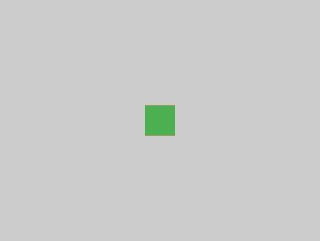
螢幕強制 Center 具有與螢幕完全相同的尺寸,因此 Center 填滿了螢幕。
Center 告訴紅色的 Container 它可以是任意大小,但不能大於螢幕。由於紅色的 Container 沒有尺寸但有子級,它決定與子級一樣大。
紅色的 Container 告訴它的子級它可以是任意大小,但不能大於螢幕。
子級是一個綠色的 Container,它想要 30 × 30。鑑於紅色的 Container 的大小與其子級相同,它也是 30 × 30。紅色未顯示,因為綠色的 Container 完全覆蓋了紅色的 Container。
示例 8
#
Center(
  child: Container(
    padding: const EdgeInsets.all(20),
    color: red,
    child: Container(color: green, width: 30, height: 30),
  ),
)
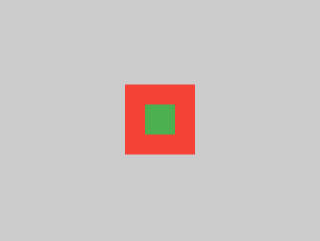
紅色的 Container 的尺寸與其子級的尺寸相同,但它會考慮自身的填充。因此,它也是 30 × 30 加上填充。由於填充,紅色的顏色是可見的,而綠色的 Container 的尺寸與上一個示例相同。
示例 9
#
ConstrainedBox(
  constraints: const BoxConstraints(
    minWidth: 70,
    minHeight: 70,
    maxWidth: 150,
    maxHeight: 150,
  ),
  child: Container(color: red, width: 10, height: 10),
)
你可能會猜測 Container 的尺寸必須在 70 到 150 畫素之間,但你會猜錯。ConstrainedBox 只施加額外的約束,這些約束來自它從父級收到的約束。
在這裡,螢幕強制 ConstrainedBox 的尺寸與螢幕完全相同,因此它告訴子級 Container 也採用螢幕的尺寸,從而忽略了它的 constraints 引數。
示例 10
#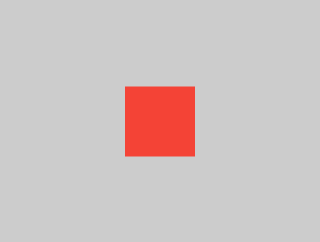
Center(
  child: ConstrainedBox(
    constraints: const BoxConstraints(
      minWidth: 70,
      minHeight: 70,
      maxWidth: 150,
      maxHeight: 150,
    ),
    child: Container(color: red, width: 10, height: 10),
  ),
)現在,Center 允許 ConstrainedBox 的大小在螢幕範圍內任意,但 ConstrainedBox 會根據其 constraints 引數向其子級施加額外的約束。
Container 的尺寸必須在 70 到 150 畫素之間。它想要 10 畫素,所以最終是 70(最小值)。
示例 11
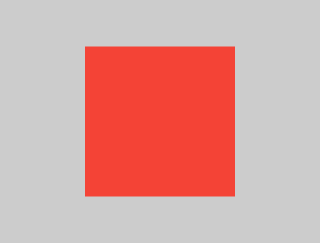
#
Center(
  child: ConstrainedBox(
    constraints: const BoxConstraints(
      minWidth: 70,
      minHeight: 70,
      maxWidth: 150,
      maxHeight: 150,
    ),
    child: Container(color: red, width: 1000, height: 1000),
  ),
)
Center 允許 ConstrainedBox 的大小在螢幕範圍內任意,但 ConstrainedBox 會根據其 constraints 引數向其子級施加額外的約束。
Container 的尺寸必須在 70 到 150 畫素之間。它想要 1000 畫素,所以最終是 150(最大值)。
示例 12
#
Center(
  child: ConstrainedBox(
    constraints: const BoxConstraints(
      minWidth: 70,
      minHeight: 70,
      maxWidth: 150,
      maxHeight: 150,
    ),
    child: Container(color: red, width: 100, height: 100),
  ),
)
Center 允許 ConstrainedBox 的大小在螢幕範圍內任意,但 ConstrainedBox 會根據其 constraints 引數向其子級施加額外的約束。
Container 的尺寸必須在 70 到 150 畫素之間。它想要 100 畫素,並且這就是它的尺寸,因為它在 70 到 150 之間。
示例 13
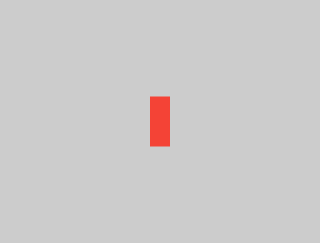
#
UnconstrainedBox(
  child: Container(color: red, width: 20, height: 50),
)
螢幕強制 UnconstrainedBox 的尺寸與螢幕完全相同。然而,UnconstrainedBox 讓它的子級 Container 可以是任意大小。
示例 14
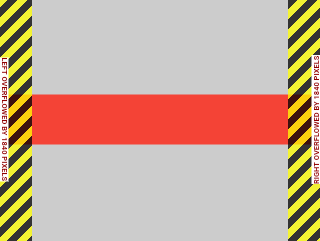
#
UnconstrainedBox(
  child: Container(color: red, width: 4000, height: 50),
)
螢幕強制 UnconstrainedBox 的尺寸與螢幕完全相同,並且 UnconstrainedBox 讓它的子級 Container 可以是任意大小。
不幸的是,在這種情況下,Container 的寬度是 4000 畫素,太大了無法放入 UnconstrainedBox,因此 UnconstrainedBox 顯示了令人頭痛的“溢位警告”。
示例 15
#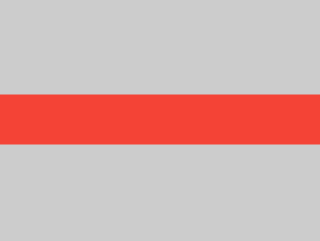
OverflowBox(
  minWidth: 0,
  minHeight: 0,
  maxWidth: double.infinity,
  maxHeight: double.infinity,
  child: Container(color: red, width: 4000, height: 50),
)
螢幕強制 OverflowBox 的尺寸與螢幕完全相同,並且 OverflowBox 讓它的子級 Container 可以是任意大小。
OverflowBox 與 UnconstrainedBox 類似;區別在於,如果子級不適合該空間,它不會顯示任何警告。
在這種情況下,Container 的寬度為 4000 畫素,太大了無法放入 OverflowBox,但 OverflowBox 僅顯示它能顯示的部分,沒有任何警告。
示例 16
#
UnconstrainedBox(
  child: Container(color: Colors.red, width: double.infinity, height: 100),
)
這不會渲染任何內容,並且你會在控制檯中看到一個錯誤。
UnconstrainedBox 允許其子級具有任意大小,但是它的子級是一個具有無限大小的 Container。
Flutter 無法渲染無限尺寸,因此會丟擲帶有以下訊息的錯誤:BoxConstraints forces an infinite width.(BoxConstraints 強制無限寬度。)
示例 17
#
UnconstrainedBox(
  child: LimitedBox(
    maxWidth: 100,
    child: Container(
      color: Colors.red,
      width: double.infinity,
      height: 100,
    ),
  ),
)
這裡你不會再收到錯誤,因為當 UnconstrainedBox 向 LimitedBox 提供無限尺寸時;它會向其子級傳遞一個最大寬度為 100 的約束。
如果你將 UnconstrainedBox 替換為 Center widget,LimitedBox 將不再應用其限制(因為它僅在收到無限約束時才應用其限制),並且 Container 的寬度可以超過 100。
這解釋了 LimitedBox 和 ConstrainedBox 之間的區別。
示例 18
#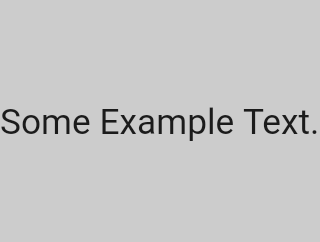
const FittedBox(child: Text('Some Example Text.'))螢幕強制 FittedBox 的尺寸與螢幕完全相同。Text 有一些自然寬度(也稱為其固有寬度),它取決於文字量、字型大小等。
FittedBox 讓 Text 可以是任意大小,但在 Text 將其大小告知 FittedBox 後,FittedBox 會縮放 Text 直到它填滿所有可用寬度。
示例 19
#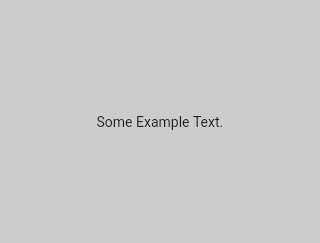
const Center(child: FittedBox(child: Text('Some Example Text.')))但是,如果你將 FittedBox 放在 Center widget 裡面會發生什麼?Center 允許 FittedBox 的大小在螢幕範圍內任意。
然後 FittedBox 的大小會根據 Text 來調整,並讓 Text 的大小任意。由於 FittedBox 和 Text 的大小相同,因此不會發生縮放。
示例 20
#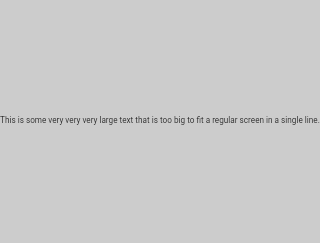
const Center(
  child: FittedBox(
    child: Text(
      'This is some very very very large text that is too big to fit a regular screen in a single line.',
    ),
  ),
)
然而,如果 FittedBox 在 Center widget 裡面,但 Text 太大無法放入螢幕會發生什麼?
FittedBox 嘗試根據 Text 調整自身大小,但它不能大於螢幕。然後它採用螢幕的大小,並調整 Text 的大小,使其也適合螢幕。
示例 21
#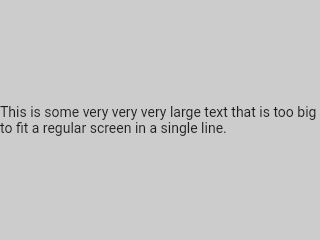
const Center(
  child: Text(
    'This is some very very very large text that is too big to fit a regular screen in a single line.',
  ),
)
但是,如果你移除 FittedBox,Text 會從螢幕獲得其最大寬度,並換行以適應螢幕。
示例 22
#
FittedBox(
  child: Container(height: 20, width: double.infinity, color: Colors.red),
)
FittedBox 只能縮放已繫結的 widget(具有非無限寬度和高度)。否則,它將不渲染任何內容,並且你會在控制檯中看到一個錯誤。
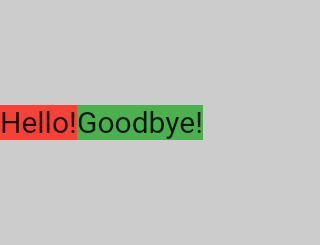
示例 23
#
Row(
  children: [
    Container(
      color: red,
      child: const Text('Hello!', style: big),
    ),
    Container(
      color: green,
      child: const Text('Goodbye!', style: big),
    ),
  ],
)
螢幕強制 Row 的尺寸與螢幕完全相同。
就像 UnconstrainedBox 一樣,Row 不會對它的子級施加任何約束,而是讓它們任意大小。然後 Row 將它們並排放置,任何額外的空間都保持空白。
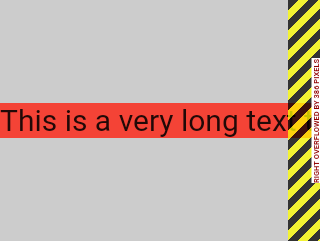
示例 24
#
Row(
  children: [
    Container(
      color: red,
      child: const Text(
        'This is a very long text that '
        'won\'t fit the line.',
        style: big,
      ),
    ),
    Container(
      color: green,
      child: const Text('Goodbye!', style: big),
    ),
  ],
)
由於 Row 不會對它的子級施加任何約束,所以子級很有可能太大而無法適應 Row 的可用寬度。在這種情況下,就像 UnconstrainedBox 一樣,Row 顯示“溢位警告”。
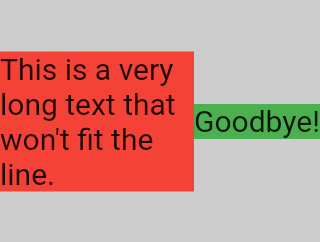
示例 25
#
Row(
  children: [
    Expanded(
      child: Center(
        child: Container(
          color: red,
          child: const Text(
            'This is a very long text that won\'t fit the line.',
            style: big,
          ),
        ),
      ),
    ),
    Container(
      color: green,
      child: const Text('Goodbye!', style: big),
    ),
  ],
)
當 Row 的子級被 Expanded widget 包裹時,Row 不再允許該子級定義自己的寬度。
相反,它會根據其他子級來定義 Expanded 的寬度,然後 Expanded widget 強制原始子級具有 Expanded 的寬度。
換句話說,一旦你使用了 Expanded,原始子級的寬度就變得無關緊要,並被忽略了。
示例 26
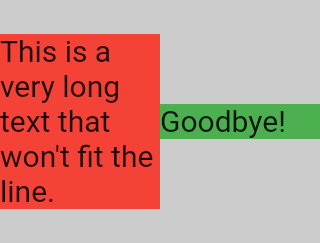
#
Row(
  children: [
    Expanded(
      child: Container(
        color: red,
        child: const Text(
          'This is a very long text that won\'t fit the line.',
          style: big,
        ),
      ),
    ),
    Expanded(
      child: Container(
        color: green,
        child: const Text('Goodbye!', style: big),
      ),
    ),
  ],
)
如果 Row 的所有子級都被 Expanded widget 包裹,每個 Expanded 的大小與其 flex 引數成比例,然後每個 Expanded widget 強制其子級具有 Expanded 的寬度。
換句話說,Expanded 會忽略其子級的首選寬度。
示例 27
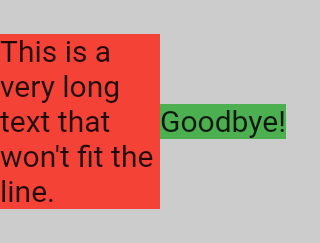
#
Row(
  children: [
    Flexible(
      child: Container(
        color: red,
        child: const Text(
          'This is a very long text that won\'t fit the line.',
          style: big,
        ),
      ),
    ),
    Flexible(
      child: Container(
        color: green,
        child: const Text('Goodbye!', style: big),
      ),
    ),
  ],
)
如果使用 Flexible 而不是 Expanded,唯一的區別是 Flexible 允許其子級的寬度等於或小於 Flexible 本身,而 Expanded 強制其子級具有與 Expanded 完全相同的寬度。但是 Expanded 和 Flexible 在調整自身大小時都會忽略其子級的寬度。
示例 28
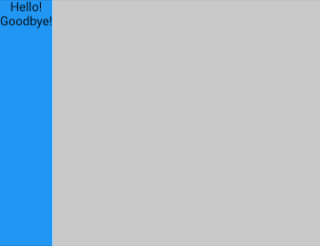
#
Scaffold(
  body: Container(
    color: blue,
    child: const Column(children: [Text('Hello!'), Text('Goodbye!')]),
  ),
)
螢幕強制 Scaffold 的尺寸與螢幕完全相同,因此 Scaffold 填滿了螢幕。Scaffold 告訴 Container 它可以是任意大小,但不能大於螢幕。
示例 29
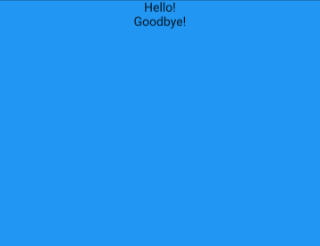
#
Scaffold(
  body: SizedBox.expand(
    child: Container(
      color: blue,
      child: const Column(children: [Text('Hello!'), Text('Goodbye!')]),
    ),
  ),
)
如果你希望 Scaffold 的子級與 Scaffold 本身一樣大,你可以將它的子級用 SizedBox.expand 包裹。
嚴格約束與鬆散約束
#經常聽到某項約束是“嚴格的”或“鬆散的”,這是什麼意思?
嚴格約束
#嚴格約束提供單一的可能性,即精確的大小。換句話說,嚴格約束的最大寬度等於其最小寬度;最大高度等於其最小高度。
一個例子是 App widget,它被 RenderView 類包含:由應用程式 build 函式返回的子級使用的 box 會獲得一個強制它完全填充應用程式內容區域(通常是整個螢幕)的約束。
另一個例子:如果你將一堆 box 巢狀在應用程式渲染樹的根部,它們都會因為 box 的嚴格約束而完全適合彼此。
如果你檢視 Flutter 的 box.dart 檔案並搜尋 BoxConstraints 建構函式,你會找到以下內容:
BoxConstraints.tight(Size size)
   : minWidth = size.width,
     maxWidth = size.width,
     minHeight = size.height,
     maxHeight = size.height;
如果你回顧 示例 2,螢幕強制紅色的 Container 的尺寸與螢幕完全相同。螢幕透過向 Container 傳遞嚴格約束來實現這一點。
鬆散約束
#鬆散約束是指最小值為零且最大值非零的約束。
一些 box 會放鬆傳入的約束,這意味著最大值得以保留但最小值被移除,因此 widget 可以具有最小寬度和高度,兩者都等於零。
最終,Center 的目的是將它從父級(螢幕)接收到的嚴格約束轉換為子級(Container)的鬆散約束。
如果你回顧 示例 3,Center 允許紅色的 Container 比螢幕小,但不能比螢幕大。
無界約束
#在某些情況下,box 的約束是無界的,或無限的。這意味著最大寬度或最大高度被設定為 double.infinity。
一個試圖儘可能大的 box 在被賦予無界約束時將無法正常工作,在除錯模式下會丟擲異常。
渲染 box 最終獲得無界約束的最常見情況是在 flex box(Row 或 Column)中,以及在可滾動區域內(例如 ListView 和其他 ScrollView 子類)。
例如,ListView 試圖擴充套件以適應其交叉方向上的可用空間(也許它是一個垂直滾動的塊,並試圖與其父級一樣寬)。如果你將一個垂直滾動的 ListView 巢狀在一個水平滾動的 ListView 中,內部列表會嘗試儘可能寬,這會是無限寬,因為外部列表在該方向上是可滾動的。
下一節將描述你在 Flex widget 中可能遇到的與無界約束相關的錯誤。
Flex
#flex box(Row 和 Column)的行為取決於其主方向上的約束是有界還是無界的。
在主方向上有界約束的 flex box 會嘗試儘可能大。
在主方向上無界約束的 flex box 會嘗試在該空間中放置其子級。每個子級的 flex 值必須設定為零,這意味著當 flex box 巢狀在另一個 flex box 或可滾動元件中時,你不能使用 Expanded;否則會丟擲異常。
交叉方向(Column 的寬度或 Row 的高度)絕不能是無界的,否則它無法合理地對齊其子級。
學習特定 widget 的佈局規則
#瞭解通用的佈局規則是必要的,但還不夠。
每個 widget 在應用通用規則時都有很大的自由度,因此僅透過閱讀 widget 的名稱而無法瞭解其行為。
如果你嘗試猜測,很可能會猜錯。除非你閱讀了 widget 的文件或研究了它的原始碼,否則你無法確切瞭解 widget 的行為。
佈局原始碼通常很複雜,所以最好還是閱讀文件。但是,如果你決定研究佈局原始碼,可以使用 IDE 的導航功能輕鬆找到它。
舉個例子
在程式碼中找到一個
Column並導航到其原始碼。為此,請在 Android Studio 或 IntelliJ 中使用Command+B(macOS) 或Control+B(Windows/Linux)。你將被帶到basic.dart檔案。由於Column繼承自Flex,請導航到Flex的原始碼(也位於basic.dart檔案中)。向下滾動直到找到一個名為
createRenderObject()的方法。如你所見,此方法返回一個RenderFlex。這是Column的渲染物件。現在導航到RenderFlex的原始碼,這將帶你到flex.dart檔案。向下滾動直到找到一個名為
performLayout()的方法。這是執行Column佈局的方法。

原始文章作者:Marcelo Glasberg
Marcelo 最初在 Medium 上發表了這篇內容,題為Flutter: 連初學者都必須知道的高階佈局規則。我們非常喜歡它,並請求他允許我們在 docs.flutter.dev 上釋出,他欣然同意了。謝謝你,Marcelo!你可以在 GitHub 和 pub.dev 上找到 Marcelo。
另外,感謝 Simon Lightfoot 創作了文章頂部的頭圖。