構建 Flutter 佈局
本教程解釋瞭如何在 Flutter 中設計和構建佈局。
如果您使用提供的示例程式碼,您可以構建以下應用程式。

照片由 Dino Reichmuth 攝於 Unsplash。文字由 瑞士旅遊局 提供。
要更好地瞭解佈局機制,請從 Flutter 的佈局方法 開始。
繪製佈局圖
#在本節中,請考慮您希望為應用程式使用者提供什麼樣的使用者體驗。
考慮如何定位使用者介面的元件。佈局由這些定位的總最終結果組成。考慮規劃您的佈局以加快編碼速度。使用視覺線索來了解螢幕上的內容位置會非常有幫助。
使用您喜歡的方法,例如介面設計工具或鉛筆和一張紙。在編寫程式碼之前,弄清楚您想將元素放在螢幕上的什麼位置。這是“三思而後行”這句格言的程式設計版本。
提出以下問題,將佈局分解為基本元素。
- 您能識別行和列嗎?
- 佈局是否包含網格?
- 是否存在重疊元素?
- UI 是否需要選項卡?
- 您需要對什麼進行對齊、填充或邊框?
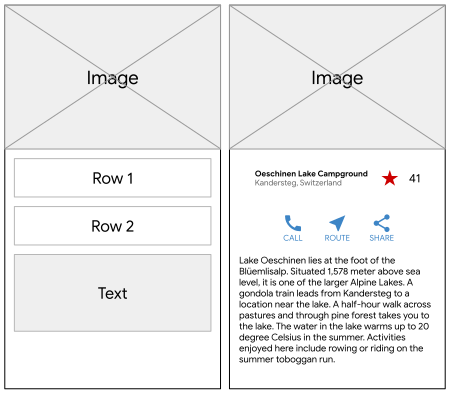
識別較大的元素。在此示例中,您將影像、標題、按鈕和描述排列成一列。
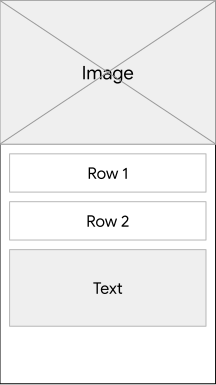
佈局中的主要元素:影像、行、行和文字塊 繪製每行的圖示。
第 1 行,**標題**部分,有三個子項:一列文字、一個星形圖示和一個數字。它的第一個子項,即該列,包含兩行文字。第一列可能需要更多空間。
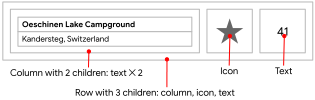
帶文字塊和圖示的標題部分 第 2 行,**按鈕**部分,有三個子項:每個子項包含一列,該列又包含一個圖示和文字。
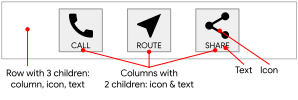
帶有三個帶標籤按鈕的按鈕部分
繪製佈局圖後,考慮如何編寫程式碼。
您會將所有程式碼都寫在一個類中嗎?或者,您會為佈局的每個部分建立一個類嗎?
為了遵循 Flutter 的最佳實踐,請建立一個類或元件來包含佈局的每個部分。當 Flutter 需要重新渲染 UI 的一部分時,它會更新發生變化的最小部分。這就是 Flutter 將“一切皆元件”的原因。如果只有 `Text` 元件中的文字發生變化,Flutter 只會重新繪製該文字。Flutter 會根據使用者輸入儘可能少地更改 UI。
對於本教程,將您已識別的每個元素編寫為自己的元件。
建立應用程式基礎程式碼
#在本節中,構建基本的 Flutter 應用程式碼以啟動您的應用。
用以下程式碼替換 `lib/main.dart` 的內容。此應用為應用標題和顯示在應用 `appBar` 上的標題使用了一個引數。此決定簡化了程式碼。
dartimport 'package:flutter/material.dart'; void main() => runApp(const MyApp()); class MyApp extends StatelessWidget { const MyApp({super.key}); @override Widget build(BuildContext context) { const String appTitle = 'Flutter layout demo'; return MaterialApp( title: appTitle, home: Scaffold( appBar: AppBar(title: const Text(appTitle)), body: const Center( child: Text('Hello World'), ), ), ); } }
新增標題部分
#在本節中,建立一個類似於以下佈局的 `TitleSection` 元件。
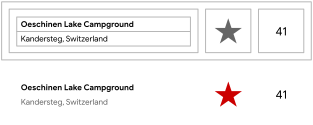
新增 `TitleSection` 元件
#在 `MyApp` 類之後新增以下程式碼。
class TitleSection extends StatelessWidget {
  const TitleSection({super.key, required this.name, required this.location});

  final String name;
  final String location;

  @override
  Widget build(BuildContext context) {
    return Padding(
      padding: const EdgeInsets.all(32),
      child: Row(
        children: [
          Expanded(
            /*1*/
            child: Column(
              crossAxisAlignment: CrossAxisAlignment.start,
              children: [
                /*2*/
                Padding(
                  padding: const EdgeInsets.only(bottom: 8),
                  child: Text(
                    name,
                    style: const TextStyle(fontWeight: FontWeight.bold),
                  ),
                ),
                Text(location, style: TextStyle(color: Colors.grey[500])),
              ],
            ),
          ),
          /*3*/
          Icon(Icons.star, color: Colors.red[500]),
          const Text('41'),
        ],
      ),
    );
  }
}- 為了利用行中所有剩餘的可用空間,使用 `Expanded` 元件來拉伸 `Column` 元件。為了將列放置在行的開頭,將 `crossAxisAlignment` 屬性設定為 `CrossAxisAlignment.start`。
- 為了在文字行之間新增空間,將這些行放入 `Padding` 元件中。
- 標題行以一個紅色星形圖示和文字 `41` 結束。整個行位於一個 `Padding` 元件內,並對每個邊緣填充 32 畫素。
將應用主體更改為可滾動檢視
#在 `body` 屬性中,將 `Center` 元件替換為 `SingleChildScrollView` 元件。在 `SingleChildScrollView` 元件內,將 `Text` 元件替換為 `Column` 元件。
body: const Center(
  child: Text('Hello World'),
body: const SingleChildScrollView(
  child: Column(
    children: [
這些程式碼更新以以下方式更改了應用程式。
- `SingleChildScrollView` 元件可以滾動。這允許顯示不適合當前螢幕的元素。
- `Column` 元件按照列出的順序顯示其 `children` 屬性中的任何元素。 `children` 列表中列出的第一個元素顯示在列表的頂部。 `children` 列表中的元素在螢幕上按陣列順序從上到下顯示。
更新應用程式以顯示標題部分
#將 `TitleSection` 元件作為 `children` 列表中的第一個元素新增。這會將其放置在螢幕頂部。將提供的名稱和位置傳遞給 `TitleSection` 建構函式。
children: [
  TitleSection(
    name: 'Oeschinen Lake Campground',
    location: 'Kandersteg, Switzerland',
  ),
],新增按鈕部分
#在本節中,新增將為您的應用程式新增功能的按鈕。
**按鈕**部分包含三個使用相同佈局的列:圖示位於一行文字上方。
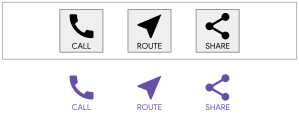
計劃將這些列分佈在一行中,以便每個列佔用相同的空間量。用主色繪製所有文字和圖示。
新增 `ButtonSection` 元件
#在 `TitleSection` 元件之後新增以下程式碼,以包含構建按鈕行的程式碼。
class ButtonSection extends StatelessWidget {
  const ButtonSection({super.key});

  @override
  Widget build(BuildContext context) {
    final Color color = Theme.of(context).primaryColor;
    // ···
  }

}
建立用於生成按鈕的元件
#由於每個列的程式碼可以使用相同的語法,因此建立一個名為 `ButtonWithText` 的元件。該元件的建構函式接受顏色、圖示資料和按鈕的標籤。使用這些值,該元件構建一個 `Column`,其中包含一個 `Icon` 和一個樣式化的 `Text` 元件作為其子項。為了幫助分隔這些子項,`Text` 元件被一個 `Padding` 元件包裹。
在 `ButtonSection` 類之後新增以下程式碼。
class ButtonSection extends StatelessWidget {
  const ButtonSection({super.key});
  // ···
}

class ButtonWithText extends StatelessWidget {
  const ButtonWithText({
    super.key,
    required this.color,
    required this.icon,
    required this.label,
  });

  final Color color;
  final IconData icon;
  final String label;

  @override
  Widget build(BuildContext context) {
    return Column(
      mainAxisSize: MainAxisSize.min,
      mainAxisAlignment: MainAxisAlignment.center,
      children: [
        Icon(icon, color: color),
        Padding(
          padding: const EdgeInsets.only(top: 8),
          child: Text(
            label,
            style: TextStyle(
              fontSize: 12,
              fontWeight: FontWeight.w400,
              color: color,
            ),
          ),
        ),
      ],
    );
  }
使用 `Row` 元件定位按鈕
#將以下程式碼新增到 `ButtonSection` 元件中。
- 新增三個 `ButtonWithText` 元件例項,每個按鈕一個。
- 傳遞該特定按鈕的顏色、`Icon` 和文字。
- 使用 `MainAxisAlignment.spaceEvenly` 值沿主軸對齊列。 `Row` 元件的主軸是水平的,`Column` 元件的主軸是垂直的。因此,此值告訴 Flutter 沿 `Row` 在每個列之前、之間和之後平均分配可用空間。
class ButtonSection extends StatelessWidget {
  const ButtonSection({super.key});

  @override
  Widget build(BuildContext context) {
    final Color color = Theme.of(context).primaryColor;
    return SizedBox(
      child: Row(
        mainAxisAlignment: MainAxisAlignment.spaceEvenly,
        children: [
          ButtonWithText(color: color, icon: Icons.call, label: 'CALL'),
          ButtonWithText(color: color, icon: Icons.near_me, label: 'ROUTE'),
          ButtonWithText(color: color, icon: Icons.share, label: 'SHARE'),
        ],
      ),
    );
  }

}

class ButtonWithText extends StatelessWidget {
  const ButtonWithText({
    super.key,
    required this.color,
    required this.icon,
    required this.label,
  });

  final Color color;
  final IconData icon;
  final String label;

  @override
  Widget build(BuildContext context) {
    return Column(
      // ···
    );
  }

}
更新應用程式以顯示按鈕部分
#將按鈕部分新增到 `children` 列表。
  TitleSection(
    name: 'Oeschinen Lake Campground',
    location: 'Kandersteg, Switzerland',
  ),
  ButtonSection(),
],
新增文字部分
#在本節中,將文字描述新增到此應用程式中。
新增 `TextSection` 元件
#在 `ButtonSection` 元件之後,將以下程式碼新增為一個單獨的元件。
class TextSection extends StatelessWidget {
  const TextSection({super.key, required this.description});

  final String description;

  @override
  Widget build(BuildContext context) {
    return Padding(
      padding: const EdgeInsets.all(32),
      child: Text(description, softWrap: true),
    );
  }
}
透過將 `softWrap` 設定為 `true`,文字行在單詞邊界處換行之前會填滿列寬。
更新應用程式以顯示文字部分
#在 `ButtonSection` 之後新增一個新的 `TextSection` 元件作為子元件。新增 `TextSection` 元件時,將其 `description` 屬性設定為位置描述的文字。
    location: 'Kandersteg, Switzerland',
  ),
  ButtonSection(),
  TextSection(
    description:
        'Lake Oeschinen lies at the foot of the Blüemlisalp in the '
        'Bernese Alps. Situated 1,578 meters above sea level, it '
        'is one of the larger Alpine Lakes. A gondola ride from '
        'Kandersteg, followed by a half-hour walk through pastures '
        'and pine forest, leads you to the lake, which warms to 20 '
        'degrees Celsius in the summer. Activities enjoyed here '
        'include rowing, and riding the summer toboggan run.',
  ),
],
新增影像部分
#在本節中,新增影像檔案以完成您的佈局。
配置您的應用程式以使用提供的影像
#要配置您的應用程式以引用影像,請修改其 `pubspec.yaml` 檔案。
在專案頂部建立一個 `images` 目錄。
下載 `lake.jpg` 影像並將其新增到新的 `images` 目錄中。
要包含影像,請在應用程式根目錄的 `pubspec.yaml` 檔案中新增一個 `assets` 標籤。當您新增 `assets` 時,它充當指向程式碼可用影像的指標集。
pubspec.yamlyamlflutter: uses-material-design: true assets: - images/lake.jpg

建立 `ImageSection` 元件
#在其他宣告之後定義以下 `ImageSection` 元件。
class ImageSection extends StatelessWidget {
  const ImageSection({super.key, required this.image});

  final String image;

  @override
  Widget build(BuildContext context) {
    return Image.asset(image, width: 600, height: 240, fit: BoxFit.cover);
  }
}
`BoxFit.cover` 值告訴 Flutter 以兩個約束條件顯示影像。首先,儘可能小地顯示影像。其次,覆蓋佈局分配的所有空間,稱為渲染框。
更新應用程式以顯示影像部分
#將 `ImageSection` 元件作為 `children` 列表中的第一個子元件新增。將 `image` 屬性設定為您在 配置您的應用程式以使用提供的影像 中新增的影像路徑。
children: [
  ImageSection(
    image: 'images/lake.jpg',
  ),
  TitleSection(
    name: 'Oeschinen Lake Campground',
    location: 'Kandersteg, Switzerland',
恭喜
#就是這樣!當您熱過載應用程式時,您的應用程式應該看起來像這樣。
資源
#您可以從以下位置訪問本教程中使用的資源
Dart 程式碼: `main.dart`
圖片: ch-photo
Pubspec: `pubspec.yaml`
下一步
#要為此佈局新增互動性,請遵循 互動性教程。