使用整合測試檢查應用功能
介紹
#本指南介紹瞭如何對 Flutter 應用執行整合測試。透過本指南,您將學會如何執行以下操作:
- 設定整合測試。
- 驗證應用是否顯示特定文字。
- 點選特定小部件。
- 執行整合測試。
本指南引用了 Flutter 自帶的 counter_app 專案以及 Flutter 的 integration_test 包。integration_test 包允許您:
- 使用
flutter drive命令在物理裝置或模擬器上執行測試。 - 執行在 Firebase Test Lab 上,以在各種裝置上自動執行測試。
- 使用 flutter_test API,以類似於 widget 測試的風格編寫測試。
建立要測試的新應用
#整合測試需要一個要測試的應用。本示例使用了 Flutter 在執行 flutter create 命令時生成的內建**計數器應用**示例。計數器應用允許使用者點選按鈕來增加計數器。
要建立內建 Flutter 應用的例項,請在終端中執行以下命令:
flutter create counter_app進入
counter_app目錄。在您喜歡的 IDE 中開啟
lib/main.dart。為
floatingActionButton()小部件新增一個key引數,並使用一個帶有字串值increment的Key類例項。dartfloatingActionButton: FloatingActionButton( key: const ValueKey('increment'), onPressed: _incrementCounter, tooltip: 'Increment', child: const Icon(Icons.add), ),儲存您的
lib/main.dart檔案。
進行這些更改後,lib/main.dart 檔案應與以下程式碼類似:
import 'package:flutter/material.dart';

void main() => runApp(const MyApp());

class MyApp extends StatelessWidget {
  const MyApp({super.key});

  @override
  Widget build(BuildContext context) {
    return const MaterialApp(
      title: 'Counter App',
      home: MyHomePage(title: 'Counter App Home Page'),
    );
  }
}

class MyHomePage extends StatefulWidget {
  const MyHomePage({super.key, required this.title});

  final String title;

  @override
  State<MyHomePage> createState() => _MyHomePageState();
}

class _MyHomePageState extends State<MyHomePage> {
  int _counter = 0;

  void _incrementCounter() {
    setState(() {
      _counter++;
    });
  }

  @override
  Widget build(BuildContext context) {
    return Scaffold(
      appBar: AppBar(title: Text(widget.title)),
      body: Center(
        child: Column(
          mainAxisAlignment: MainAxisAlignment.center,
          children: <Widget>[
            const Text('You have pushed the button this many times:'),
            Text(
              '$_counter',
              style: Theme.of(context).textTheme.headlineMedium,
            ),
          ],
        ),
      ),
      floatingActionButton: FloatingActionButton(
        // Provide a Key to this button. This allows finding this
        // specific button inside the test suite, and tapping it.
        key: const Key('increment'),
        onPressed: _incrementCounter,
        tooltip: 'Increment',
        child: const Icon(Icons.add),
      ),
    );
  }
}
新增 integration_test 依賴項
#您需要將測試包新增到您的新應用中。
要使用 sdk: flutter 將 integration_test 和 flutter_test 包作為 dev_dependencies 新增,請執行以下命令:
flutter pub add 'dev:integration_test:{"sdk":"flutter"}'輸出
Building flutter tool...
Resolving dependencies...
Got dependencies.
Resolving dependencies...
+ file 7.0.0
+ flutter_driver 0.0.0 from sdk flutter
+ fuchsia_remote_debug_protocol 0.0.0 from sdk flutter
+ integration_test 0.0.0 from sdk flutter
...
  test_api 0.6.1 (0.7.1 available)
  vm_service 13.0.0 (14.2.1 available)
+ webdriver 3.0.3
Changed 8 dependencies!
7 packages have newer versions incompatible with dependency constraints.
Try `flutter pub outdated` for more information.
更新後的 pubspec.yaml 檔案
# ...
dev_dependencies:
  # ... added dependencies
  flutter_test:
    sdk: flutter
  flutter_lints: ^6.0.0
  integration_test:
    sdk: flutter
# ...
建立整合測試檔案
#整合測試位於 Flutter 專案內的單獨目錄中。
- 建立一個名為
integration_test的新目錄。 - 在該目錄中新增一個名為
app_test.dart的空檔案。
生成的目錄樹應與以下內容類似:
counter_app/
  lib/
    main.dart
  integration_test/
    app_test.dart
編寫整合測試
#整合測試檔案包含一個 Dart 程式碼檔案,該檔案依賴於 integration_test、flutter_test 和您應用的 Dart 檔案。
在您喜歡的 IDE 中開啟
integration_test/app_test.dart檔案。複製以下程式碼並貼上到您的
integration_test/app_test.dart檔案中。最後一個匯入應指向您counter_app的main.dart檔案。(此import指向名為introduction的示例應用。)integration_test/counter_test.dartdartimport 'package:flutter/material.dart'; import 'package:flutter_test/flutter_test.dart'; import 'package:how_to/main.dart'; import 'package:integration_test/integration_test.dart'; void main() { IntegrationTestWidgetsFlutterBinding.ensureInitialized(); group('end-to-end test', () { testWidgets('tap on the floating action button, verify counter', ( tester, ) async { // Load app widget. await tester.pumpWidget(const MyApp()); // Verify the counter starts at 0. expect(find.text('0'), findsOneWidget); // Finds the floating action button to tap on. final fab = find.byKey(const ValueKey('increment')); // Emulate a tap on the floating action button. await tester.tap(fab); // Trigger a frame. await tester.pumpAndSettle(); // Verify the counter increments by 1. expect(find.text('1'), findsOneWidget); }); }); }
此示例包含三個步驟:
初始化
IntegrationTestWidgetsFlutterBinding。此單例服務在物理裝置上執行測試。使用
WidgetTester類與小部件進行互動並進行測試。測試重要場景。
執行整合測試
#執行的整合測試取決於您進行測試的平臺。
- 要測試桌面平臺,請使用命令列或 CI 系統。
- 要測試移動平臺,請使用命令列或 Firebase Test Lab。
- 要在 Web 瀏覽器中進行測試,請使用命令列。
在桌面平臺上進行測試
#如果使用 CI 系統測試 Linux 應用,請展開
要測試 Linux 應用,您的 CI 系統必須先呼叫 X 伺服器。在 GitHub Action、GitLab Runner 或類似的配置檔案中,將整合測試設定為與 xvfb-run 工具**協同工作**。
這樣做會呼叫一個 X Window 系統,Flutter 可以在其中啟動並測試您的 Linux 應用。
以 GitHub Actions 為例,您的 jobs.setup.steps 應包含一個類似以下的步驟:
      - name: Run Integration Tests
        uses: username/xvfb-action@v1.1.2
        with:
          run: flutter test integration_test -d linux -r github
這會在 X Window 中啟動整合測試。
如果您的整合配置方式不正確,Flutter 將返回錯誤。
Building Linux application...
Error waiting for a debug connection: The log reader stopped unexpectedly, or never started.
要測試 macOS、Windows 或 Linux 平臺,請完成以下任務。
從專案根目錄執行以下命令。
flutter test integration_test/app_test.dart如果出現選擇測試平臺的選項,請選擇桌面平臺。輸入
1選擇桌面平臺。
根據平臺,命令結果應與以下輸出類似:
PS C:\path\to\counter_app> flutter test .\integration_test\app_test.dart
Resolving dependencies...
Downloading packages...
  flutter_lints 3.0.2 (4.0.0 available)
  leak_tracker 10.0.4 (10.0.5 available)
  leak_tracker_flutter_testing 3.0.3 (3.0.5 available)
  lints 3.0.0 (4.0.0 available)
  material_color_utilities 0.8.0 (0.11.1 available)
  meta 1.12.0 (1.15.0 available)
  test_api 0.7.0 (0.7.1 available)
  vm_service 14.2.1 (14.2.2 available)
Got dependencies!
8 packages have newer versions incompatible with dependency constraints.
Try `flutter pub outdated` for more information.

Connected devices:

Windows (desktop) • windows • windows-x64    • Microsoft Windows [Version 10.0.22631.3593]
Chrome (web)      • chrome  • web-javascript • Google Chrome 124.0.6367.207
Edge (web)        • edge    • web-javascript • Microsoft Edge 124.0.2478.97

[1]: Windows (windows)
[2]: Chrome (chrome)
[3]: Edge (edge)

Please choose one (or "q" to quit): 1

00:00 +0: loading C:/path/to/counter_app/integration_test/app_test.dart               B
00:29 +0: loading C:/path/to/counter_app/counter_app/integration_test/app_test.dart   29.1s
√ Built build\windows\x64\runner\Debug\counter_app.exe
00:31 +1: All tests passed!
flutter test integration_test
Resolving dependencies...
Downloading packages...
flutter_lints 3.0.2 (4.0.0 available)
> leak_tracker 10.0.4 (was 10.0.0) (10.0.5 available)
> leak_tracker_flutter_testing 3.0.3 (was 2.0.1) (3.0.5 available)
> leak_tracker_testing 3.0.1 (was 2.0.1)
lints 3.0.0 (4.0.0 available)
material_color_utilities 0.8.0 (0.11.1 available)
> meta 1.12.0 (was 1.11.0) (1.15.0 available)
> test_api 0.7.0 (was 0.6.1) (0.7.1 available)
> vm_service 14.2.1 (was 13.0.0) (14.2.2 available)
Changed 6 dependencies!
8 packages have newer versions incompatible with dependency constraints.
Try `flutter pub outdated` for more information.
Connected devices:
macOS (desktop) • macos • darwin-arm64 • macOS 14.4.1 23E224 darwin-arm64
Mac Designed for iPad (desktop) • mac-designed-for-ipad • darwin • macOS 14.4.1 23E224 darwin-arm64
Chrome (web) • chrome • web-javascript • Google Chrome 124.0.6367.208
No wireless devices were found.
[1]: macOS (macos)
[2]: Mac Designed for iPad (mac-designed-for-ipad)
[3]: Chrome (chrome)
Please choose one (or "q" to quit): 1
00:01 +0: loading /path/to/counter_app/integration_test/app_test.dart R
00:02 +0: loading /path/to/counter_app/integration_test/app_test.dart 846ms
00:03 +0: loading /path/to/counter_app/integration_test/app_test.dart B
Building macOS application...
✓ Built build/macos/Build/Products/Debug/counter_app.app
00:32 +1: All tests passed!flutter test integration_test/app_test.dart
Connected devices:
Linux (desktop) • linux • linux-x64 • Ubuntu 22.04.4 LTS 6.5.0-35-generic
Chrome (web) • chrome • web-javascript • Google Chrome 104.0.5112.101
[1]: Linux (linux)
[2]: Chrome (chrome)
Please choose one (or "q" to quit): 1
00:00 +0: /path/to/counter_app/integration_test/app_test.dart B
00:16 +0: /path/to/counter_app/integration_test/app_test.dart
✓ Built build/linux/x64/debug/bundle/counter_app在 Android 裝置上進行測試
#要測試真實的 Android 裝置,請完成以下任務。
連線 Android 裝置。
從專案根目錄執行以下命令。
flutter test integration_test/app_test.dart結果應與以下輸出類似:
flutter test integration_test/app_test.dart
00:04 +0: loading /path/to/counter_app/integration_test/app_test.dart
00:15 +0: loading /path/to/counter_app/integration_test/app_test.dart
00:18 +0: loading /path/to/counter_app/integration_test/app_test.dart   2,387ms
Installing build/app/outputs/flutter-apk/app.apk...  612ms
00:21 +1: All tests passed!
驗證測試完成後是否移除了計數器應用。否則,後續測試將失敗。如有必要,請點按應用並在上下文選單中選擇**移除應用**。
在 iOS 裝置上進行測試
#要測試真實的 iOS 裝置,請完成以下任務。
連線 iOS 裝置。
從專案根目錄執行以下命令。
flutter test integration_test/app_test.dart結果應與以下輸出類似:
flutter test integration_test/app_test.dart
00:04 +0: loading /path/to/counter_app/integration_test/app_test.dart
00:15 +0: loading /path/to/counter_app/integration_test/app_test.dart
00:18 +0: loading /path/to/counter_app/integration_test/app_test.dart   2,387ms
Xcode build done.                                           13.5s
00:21 +1: All tests passed!
驗證測試完成後是否移除了計數器應用。否則,後續測試將失敗。如有必要,請點按應用並在上下文選單中選擇**移除應用**。
在 Web 瀏覽器中進行測試
#要透過 Web 瀏覽器進行測試,請執行以下步驟。
將 ChromeDriver 安裝到您選擇的目錄中。
npx @puppeteer/browsers install chromedriver@stable為簡化安裝,此命令使用了
@puppeteer/browsersNode 庫。將 ChromeDriver 的路徑新增到您的
$PATH環境變數中。驗證 ChromeDriver 安裝是否成功。
chromedriver --version
ChromeDriver 124.0.6367.60 (8771130bd84f76d855ae42fbe02752b03e352f17-refs/branch-heads/6367@{#798})
在您的
counter_app專案目錄中,建立一個名為test_driver的新目錄。mkdir test_driver在該目錄中,建立一個名為
integration_test.dart的新檔案。複製以下程式碼並貼上到您的
integration_test.dart檔案中。test_driver/integration_test.dartdartimport 'package:integration_test/integration_test_driver.dart'; Future<void> main() => integrationDriver();如下啟動
chromedriver:chromedriver --port=4444從專案根目錄執行以下命令:
flutter drive \
  --driver=test_driver/integration_test.dart \
  --target=integration_test/app_test.dart \
  -d chrome
響應應與以下輸出類似:
Resolving dependencies...
  leak_tracker 10.0.0 (10.0.5 available)
  leak_tracker_flutter_testing 2.0.1 (3.0.5 available)
  leak_tracker_testing 2.0.1 (3.0.1 available)
  material_color_utilities 0.8.0 (0.11.1 available)
  meta 1.11.0 (1.14.0 available)
  test_api 0.6.1 (0.7.1 available)
  vm_service 13.0.0 (14.2.1 available)
Got dependencies!
7 packages have newer versions incompatible with dependency constraints.
Try `flutter pub outdated` for more information.
Launching integration_test/app_test.dart on Chrome in debug mode...
Waiting for connection from debug service on Chrome...             10.9s
This app is linked to the debug service: ws://127.0.0.1:51523/3lofIjIdmbs=/ws
Debug service listening on ws://127.0.0.1:51523/3lofIjIdmbs=/ws
00:00 +0: end-to-end test tap on the floating action button, verify counter
00:01 +1: (tearDownAll)
00:01 +2: All tests passed!
All tests passed.
Application finished.
要將此作為無頭測試執行,請使用
-d web-server選項執行flutter drive。flutter drive \ --driver=test_driver/integration_test.dart \ --target=integration_test/app_test.dart \ -d web-server
要了解更多資訊,請參閱 執行使用 Web 的 Flutter Driver 測試 wiki 頁面。
在 Firebase Test Lab (Android) 中進行測試
#您可以使用 Firebase Test Lab 來測試 Android 目標。
Android 設定
#遵循 README 中 Android 裝置測試部分的說明。
Test Lab 專案設定
#啟動您的 Firebase Console。
如有必要,請建立一個新的 Firebase 專案。
導航到 **Quality > Test Lab**。
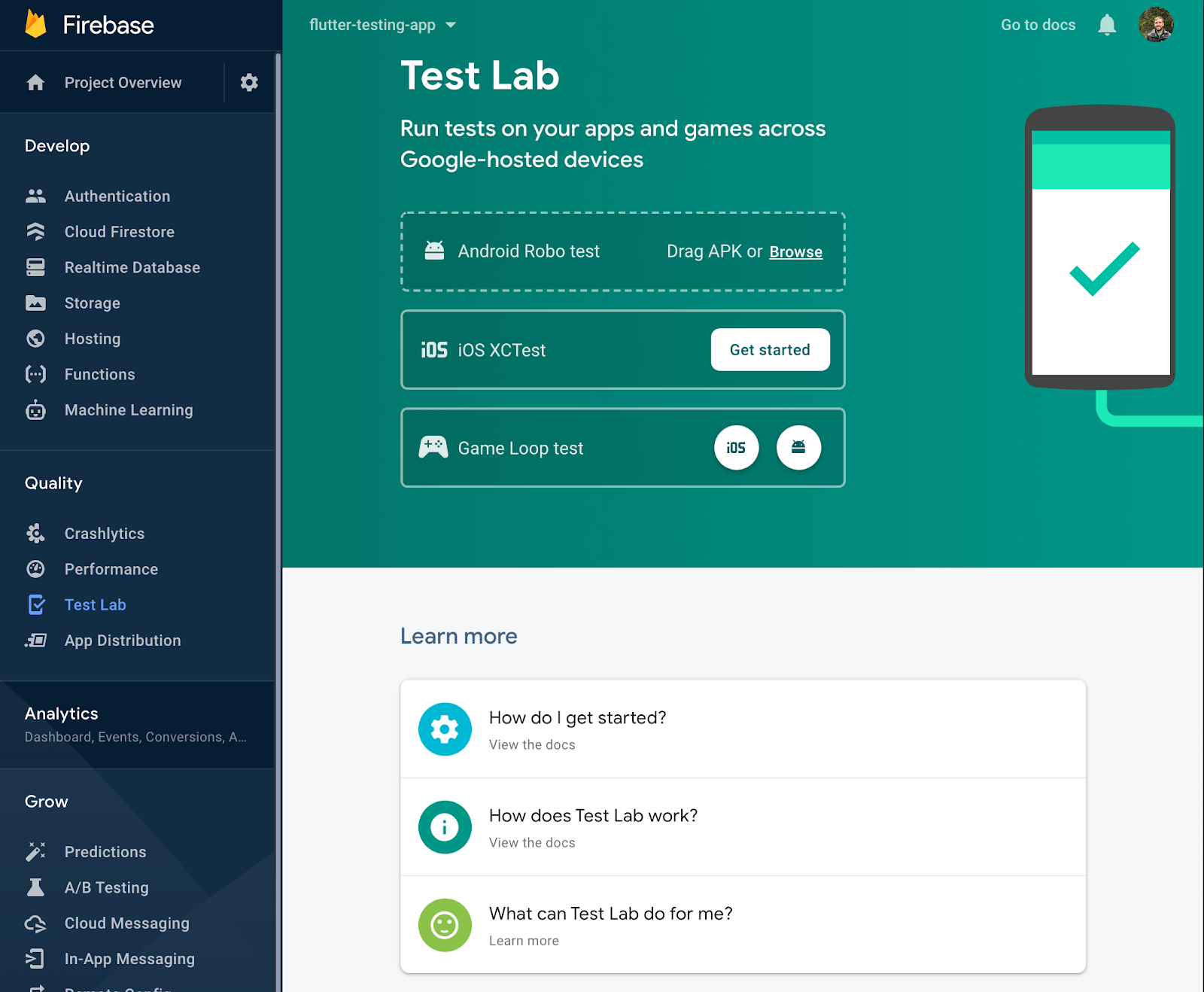
上傳 Android APK
#請完成以下步驟來上傳 Android APK。
使用 Gradle 建立 APK。
// Go to the Android directory which contains the gradlew script pushd android // Build a debug APK for Flutter with gradlew // Note that a standard --release build will not include package:integration_test flutter build apk --debug // Build an Android test APK ./gradlew app:assembleAndroidTest // Build a debug APK by passing in an integration test ./gradlew app:assembleDebug -Ptarget=integration_test/<name>_test.dart<name>_test.dart:在 **專案設定**部分建立的檔案。
如果需要,以逗號分隔的列表形式將引數傳遞給整合測試。將所有引數進行
base64編碼。./gradlew project:task -Pdart-defines="{base64 (key=value)}[, ...]"(key=value)}[, ...]:用逗號分隔的鍵值對列表替換此項。
返回到之前的目錄。
popd
有關其他說明,請參閱 README 中的 Firebase Test Lab 部分。
啟動 Robo 測試
#要使用 Robo 測試來執行整合測試,請完成以下步驟。
將除錯 APK 從
<flutter_project_directory>/build/app/outputs/apk/debug拖放到網頁上的**Android Robo Test** 目標。例如: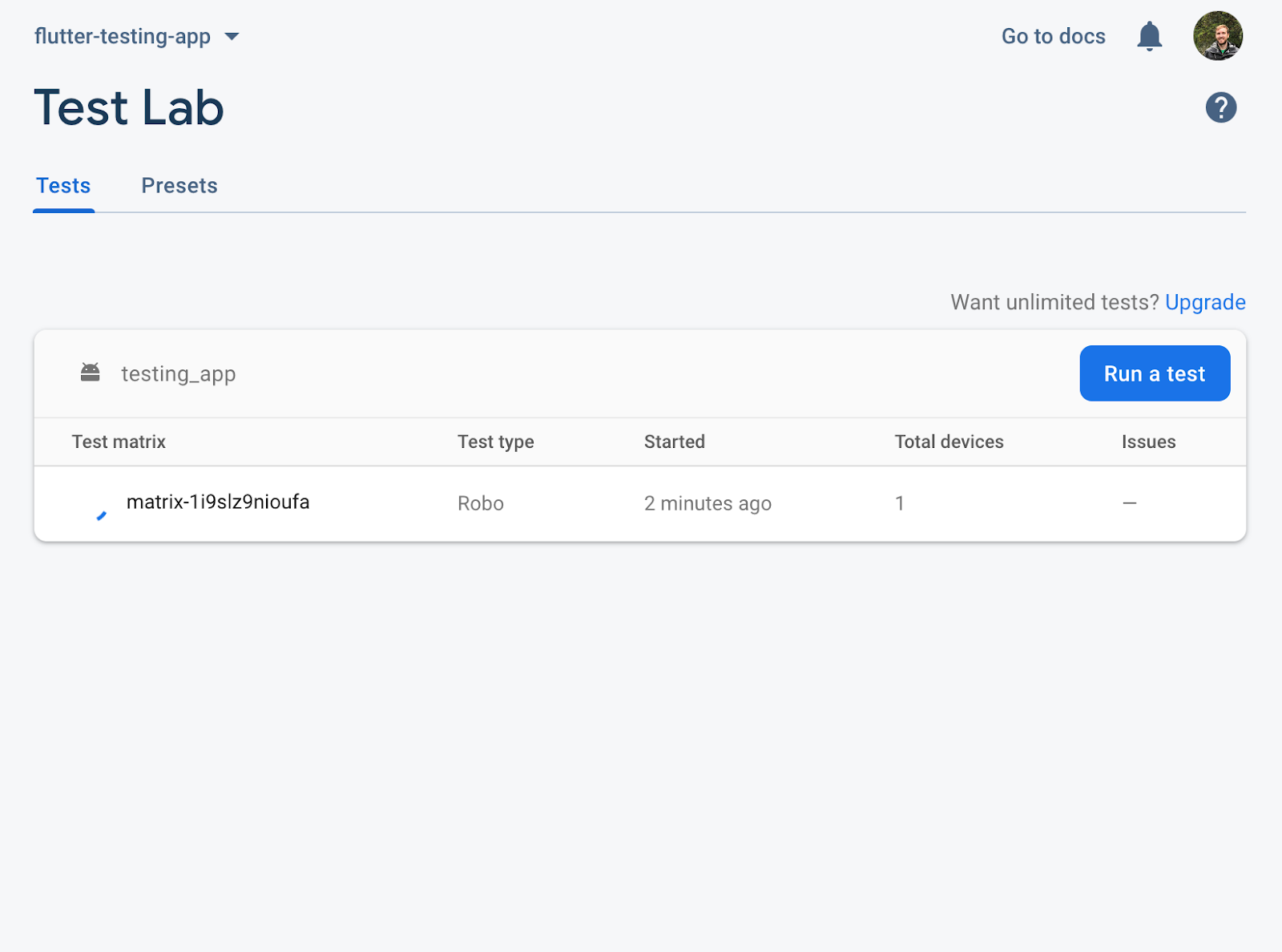
點選**Run a test**。
選擇**Instrumentation**測試型別。
將 App APK 新增到**App APK or AAB**框中。
<flutter_project_directory>/build/app/outputs/apk/debug/<file>.apk將 Test APK 新增到**Test APK**框中。
<flutter_project_directory>/build/app/outputs/apk/androidTest/debug/<file>.apk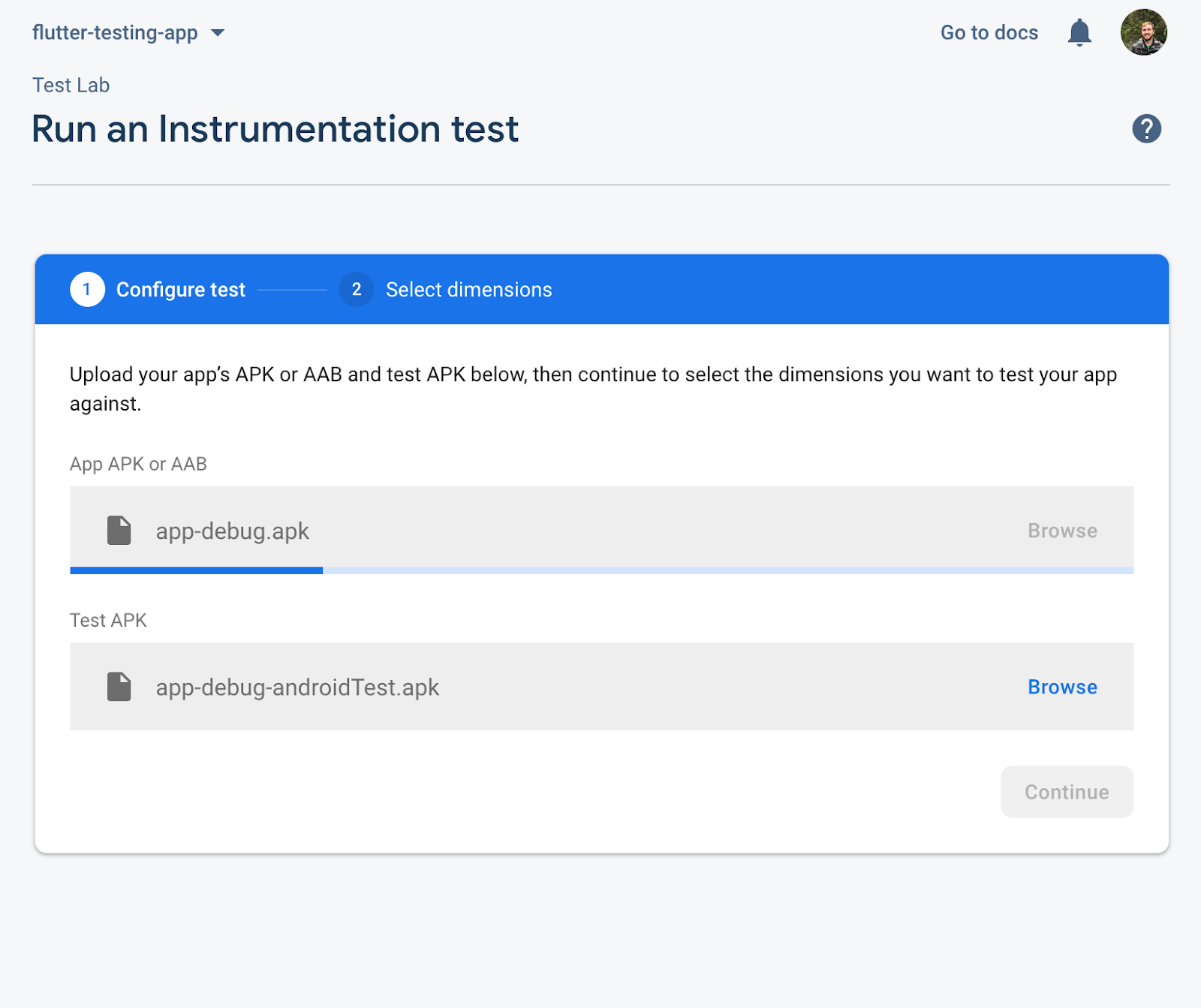
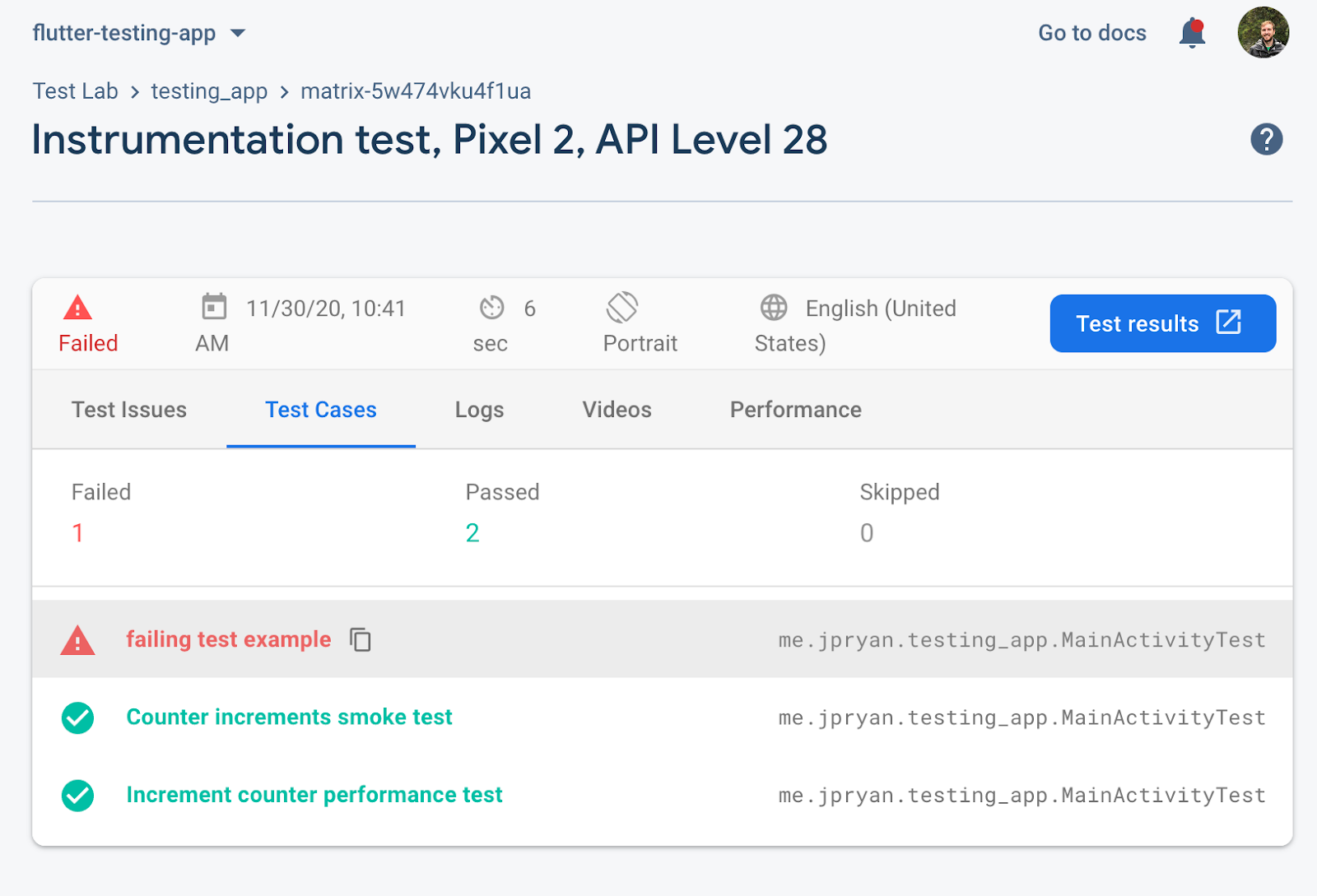
如果發生失敗,請點選紅色圖示檢視輸出。
在 Firebase Test Lab (iOS) 中進行測試
#您可以使用 Firebase Test Lab 來測試 iOS 目標。
iOS 設定
#遵循 iOS 裝置測試說明。
Test Lab 專案設定
#啟動您的 Firebase Console。
如有必要,請建立一個新的 Firebase 專案。
導航到 **Quality > Test Lab**。
透過 Firebase Console 上傳 Xcode 測試
#要了解如何使用 Firebase Test Lab Console 從 ZIP 檔案上傳測試,請查閱 Firebase Test Lab iOS 說明。
透過命令列將 Xcode 測試上傳到 Firebase Console
#要了解如何從命令列將 ZIP 檔案中的測試上傳到 Firebase Test Lab Console,請查閱 iOS 裝置測試說明。