從 flutter_driver 遷移
此頁面介紹瞭如何將使用 flutter_driver 的現有專案遷移到 integration_test 包,以便執行整合測試。
integration_test 中的測試使用 小部件測試 中使用的方法。
有關 integration_test 包的介紹,請參閱 整合測試指南。
入門示例專案
#本指南中的專案是一個小型桌面應用程式示例,具有以下功能:
- 左側是使用者可以滾動、點選和選擇的植物列表。
- 右側是詳細資訊螢幕,顯示植物名稱和物種。
- 應用啟動時,如果沒有選擇植物,會顯示一條提示使用者選擇植物的文字。
- 植物列表是從位於
/assets資料夾中的本地 JSON 檔案載入的。
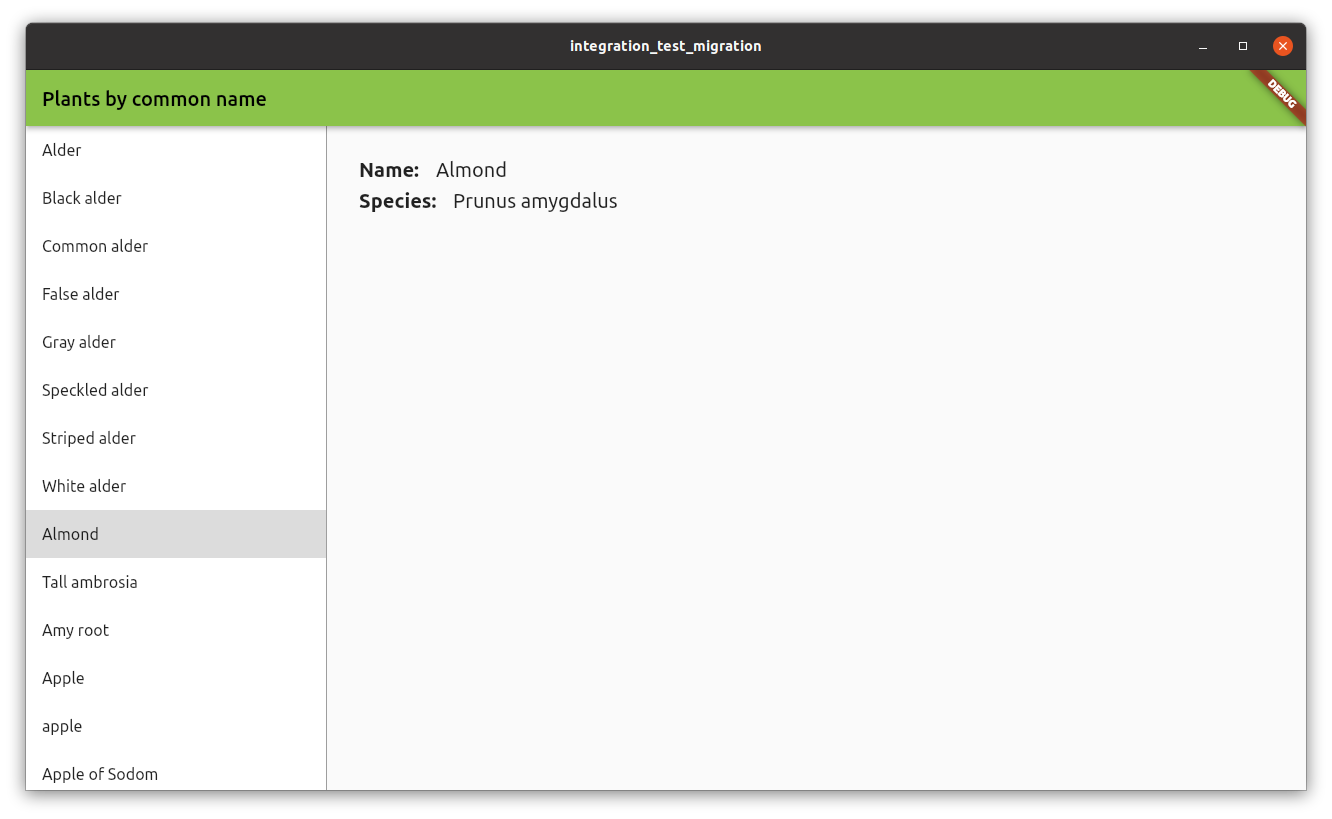
您可以在 示例專案 資料夾中找到完整的程式碼示例。
現有測試
#該專案包含三個 flutter_driver 測試,執行以下檢查:
- 驗證應用的初始狀態。
- 選擇植物列表中的第一項。
- 滾動並選擇列表中的最後一項。
這些測試包含在 test_driver 資料夾中,位於 main_test.dart 檔案內。
在此資料夾中還有一個名為 main.dart 的檔案,其中包含對 enableFlutterDriverExtension() 方法的呼叫。使用 integration_test 時,此檔案不再需要。
設定
#要開始使用 integration_test 包,如果尚未新增,請將 integration_test 新增到您的 pubspec.yaml 檔案中。
dev_dependencies:
  integration_test:
    sdk: flutter
接下來,在您的專案中建立一個新目錄 integration_test/,然後在此處建立您的測試檔案,格式為:<name>_test.dart。
遷移測試
#本節包含有關如何將現有 flutter_driver 測試遷移到 integration_test 測試的各種示例。
示例:驗證小部件顯示
#應用啟動時,右側螢幕會顯示一條文字,提示使用者從列表中選擇一種植物。
此測試驗證了文字是否已顯示。
flutter_driver
在 flutter_driver 中,測試使用 waitFor,它會等待直到 finder 能夠定位到小部件。如果找不到小部件,測試將失敗。
test(
  'do not select any item, verify please select text is displayed',
  () async {
    // Wait for 'please select' text is displayed
    await driver.waitFor(find.text('Please select a plant from the list.'));
  },
);
integration_test
在 integration_test 中,您需要執行兩個步驟:
首先使用
tester.pumpWidget方法載入主應用小部件。然後,使用
expect和findsOneWidget匹配器來驗證小部件是否已顯示。
testWidgets(
  'do not select any item, verify please select text is displayed',
  (tester) async {
    // load the PlantsApp widget
    await tester.pumpWidget(const PlantsApp());

    // wait for data to load
    await tester.pumpAndSettle();

    // Find widget with 'please select'
    final finder = find.text('Please select a plant from the list.');

    // Check if widget is displayed
    expect(finder, findsOneWidget);
  },
);
示例:點選操作
#此測試在列表中的第一項(一個帶有文字“Alder”的 ListTile)上執行點選操作。
點選後,測試會等待詳細資訊出現。在這種情況下,它會等待顯示帶有文字“Alnus”的小部件。
此外,測試還驗證了不再顯示文字“Please select a plant from the list.”。
flutter_driver
在 flutter_driver 中,使用 driver.tap 方法透過 finder 對小部件執行點選操作。
要驗證小部件是否未顯示,請使用 waitForAbsent 方法。
test('tap on the first item (Alder), verify selected', () async {
  // find the item by text
  final item = find.text('Alder');

  // Wait for the list item to appear.
  await driver.waitFor(item);

  // Emulate a tap on the tile item.
  await driver.tap(item);

  // Wait for species name to be displayed
  await driver.waitFor(find.text('Alnus'));

  // 'please select' text should not be displayed
  await driver.waitForAbsent(
    find.text('Please select a plant from the list.'),
  );
});
integration_test
在 integration_test 中,使用 tester.tap 執行點選操作。
在點選操作之後,您必須呼叫 tester.pumpAndSettle 來等待操作完成,並且所有 UI 更改都已發生。
要驗證小部件是否未顯示,請使用相同的 expect 函式和 findsNothing 匹配器。
testWidgets('tap on the first item (Alder), verify selected', (tester) async {
  await tester.pumpWidget(const PlantsApp());

  // wait for data to load
  await tester.pumpAndSettle();

  // find the item by text
  final item = find.text('Alder');

  // assert item is found
  expect(item, findsOneWidget);

  // Emulate a tap on the tile item.
  await tester.tap(item);
  await tester.pumpAndSettle();

  // Species name should be displayed
  expect(find.text('Alnus'), findsOneWidget);

  // 'please select' text should not be displayed
  expect(find.text('Please select a plant from the list.'), findsNothing);
});
示例:滾動
#此測試與之前的測試類似,但它向下滾動並點選最後一項。
flutter_driver
要使用 flutter_driver 向下滾動,請使用 driver.scroll 方法。
您必須提供用於執行滾動操作的小部件,以及滾動的持續時間。
您還必須為滾動操作提供總偏移量。
test('scroll, tap on the last item (Zedoary), verify selected', () async {
  // find the list of plants, by Key
  final listFinder = find.byValueKey('listOfPlants');

  // Scroll to the last position of the list
  // a -100,000 pixels is enough to reach the bottom of the list
  await driver.scroll(
    listFinder,
    0,
    -100000,
    const Duration(milliseconds: 500),
  );

  // find the item by text
  final item = find.text('Zedoary');

  // Wait for the list item to appear.
  await driver.waitFor(item);

  // Emulate a tap on the tile item.
  await driver.tap(item);

  // Wait for species name to be displayed
  await driver.waitFor(find.text('Curcuma zedoaria'));

  // 'please select' text should not be displayed
  await driver.waitForAbsent(
    find.text('Please select a plant from the list.'),
  );
});
integration_test
使用 integration_test,可以使用 tester.scrollUntilVisible 方法。
您需要提供要查詢的小部件,而不是要滾動的小部件。在這種情況下,您正在查詢帶有文字“Zedoary”的專案,這是列表中的最後一項。
該方法會查詢任何 Scrollable 小部件,並使用給定的偏移量執行滾動操作。該操作會重複進行,直到該專案可見為止。
testWidgets('scroll, tap on the last item (Zedoary), verify selected', (
  tester,
) async {
  await tester.pumpWidget(const PlantsApp());

  // wait for data to load
  await tester.pumpAndSettle();

  // find the item by text
  final item = find.text('Zedoary');

  // finds Scrollable widget and scrolls until item is visible
  // a 100,000 pixels is enough to reach the bottom of the list
  await tester.scrollUntilVisible(item, 100000);

  // assert item is found
  expect(item, findsOneWidget);

  // Emulate a tap on the tile item.
  await tester.tap(item);
  await tester.pumpAndSettle();

  // Wait for species name to be displayed
  expect(find.text('Curcuma zedoaria'), findsOneWidget);

  // 'please select' text should not be displayed
  expect(find.text('Please select a plant from the list.'), findsNothing);
});